

Need to yank a messy background out of a photo? Adobe Express handles it in seconds, no Photoshop skills required.
The tool uses Adobe’s AI to isolate subjects and delete everything else. Plus, it works right in your browser or mobile app. Best part? The free plan includes background removal alongside basic editing tools.
Let’s walk through exactly how to use it.
What You Need First
You’ll need a free Adobe account to get started. Then access Adobe Express through the website or grab the iOS or Android app.
The current Free plan gives you background removal, core editing features, and a limited pool of AI credits each month. So you can test it on several images before deciding if you need more.
Sign in once and you’re ready to go.
Remove Backgrounds in 3 Steps

The actual process takes almost no time once you’re set up.
On desktop: Head to Adobe Express, find the Quick actions panel on the Home screen, and click Remove background. Or open a new project, add your image to the canvas, then select the same option from the editing toolbar.
On mobile: Create a new project, add a photo from your camera or files, tap the image, and look for Remove background in the toolbar.
Either way, you upload a JPEG or PNG by dragging it in or picking from storage. The AI processes your image within seconds.
In my testing, it works best with clear subjects. Think a person against a plain wall, a product on a desk, or a logo with good contrast. The cleaner your starting image, the better the result.
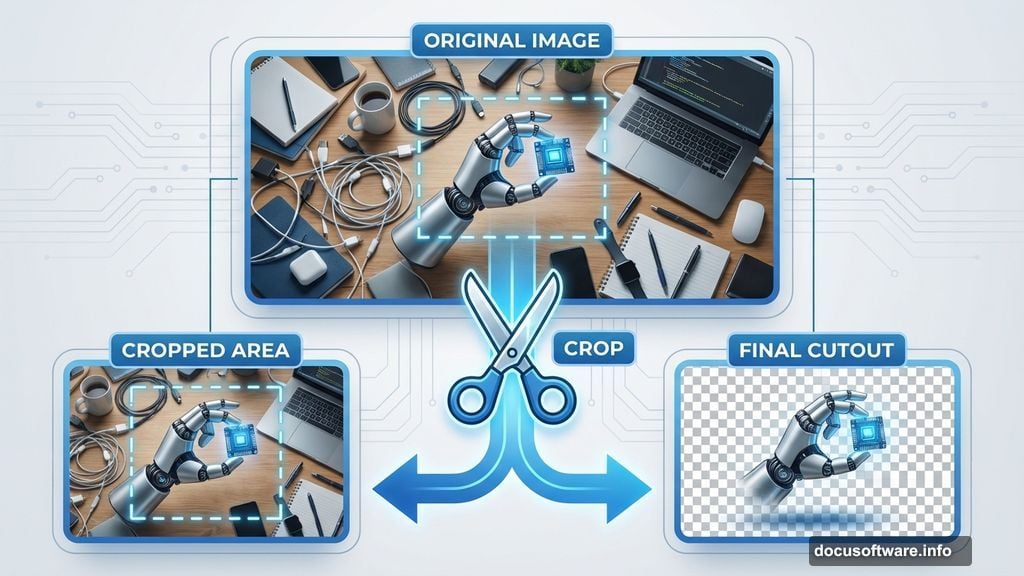
If the first pass looks rough, don’t waste time fixing tiny details. Instead, undo it, crop your original image to focus on the subject, then run Remove background again. That usually works better than fighting a messy selection.
Once it looks good, download as a PNG with transparent background.
Get Better Results With These Tricks

A few simple tweaks can make a huge difference in output quality.
Start with good images. Higher-resolution photos with clear subjects and strong contrast between foreground and background give the cleanest cuts. Avoid tiny, heavily compressed files when possible.
Crop before processing. Tight cropping forces the AI to focus on your main subject instead of guessing between multiple objects in frame.
Add finishing touches inside Express. Subtle drop shadows or outlines prevent your cut-out from looking pasted on.
These small steps take 30 extra seconds but make your final result look way more professional.
Know the Free Plan Limits
Adobe Express makes background removal accessible, but the free version has boundaries.
Background removal uses generative AI credits from the same monthly pool as other AI features. So heavy use will drain your allowance quickly.

Quality varies too. The tool excels with straightforward subjects but struggles with fine hair, glass, motion blur, or very busy backgrounds. For most quick jobs, the free version works great.
But if you’re processing dozens of images weekly or need pixel-perfect control, you’ll probably want a paid Express plan or full Creative Cloud subscription.
Common Questions Answered
Does Express change my image size or quality?
It can apply some compression on export. Always check your downloaded file.
Can I use cut-outs in commercial projects?
Yes in many cases, but verify Adobe’s current license terms first.
Does it work on logos and graphics?
Usually yes. Simple, high-contrast designs work best.
Can I process multiple images at once?
No. Adobe Express handles one design at a time.
Do I need other Adobe apps installed?
Nope. Everything runs in your browser or the Express mobile app.
Free Works for Most People
Adobe Express delivers solid background removal without the Photoshop learning curve. The free plan gives you enough credits to handle regular use, and the AI keeps getting better at edge detection.
For quick social media posts, simple product photos, or cleaning up presentation images, it’s hard to beat. Just know your limits. Heavy users or projects requiring perfect precision will eventually need to upgrade.
But for everyone else? This free tool does the job fast.