
Creating invisible cuts and professional transitions used to require expensive plugins and hours of masking work. Not anymore.
Adobe Firefly‘s Generate Video tools changed the game. Now you can create custom VFX elements and transition clips from simple text prompts. Plus, the results drop into your timeline like regular footage.
Here’s how to build effects that actually enhance your edits instead of screaming “I used an AI tool.”
Set Up Your Firefly Workspace First
Before generating anything, grab your Adobe account and check your generative credits. Free accounts include enough credits to test multiple variations, which you’ll definitely need.
Make sure you’re running a recent version of Chrome or Safari with JavaScript enabled. Firefly runs entirely in your browser, so no downloads or installations required.
Also, bookmark the Generate Video section. You’ll use it constantly once you see how fast it works.
Plan Your Effect Before Opening Firefly
Most failed effects happen because creators skip this step. So decide upfront whether you need a special effect or a transition.

Special effects layer over existing footage or cut in for visual impact. Transitions bridge two separate shots smoothly. These serve completely different purposes in your edit.
Write down the aspect ratio, duration, and camera movement you want. Firefly accepts prompts that include specific directions like “slow push-in” or “locked-off shot.” The more detailed your plan, the better your first generation.
Generate Special Effects That Match Your Footage
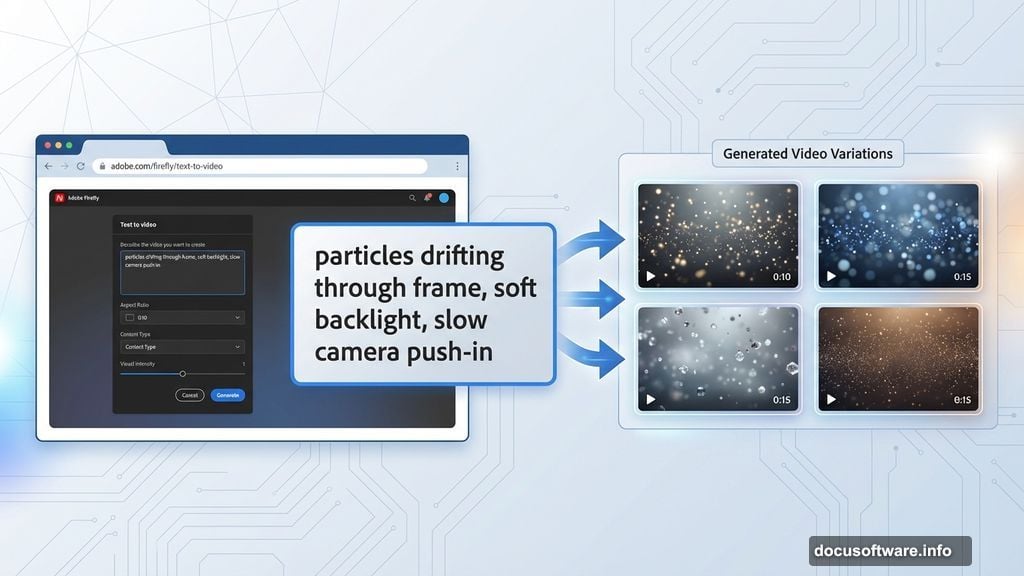
Open Firefly and navigate to Generate Video, then select Text to video. Now describe your effect like you’re directing a camera operator.
Include what’s in frame, the lighting quality, the mood, and crucially, how the camera should move. For instance: “particles drifting through frame, soft backlight, slow camera push-in, cinematic mood.”
Firefly includes a prompt enhancement feature that helps flesh out your descriptions. You can also use ChatGPT to expand basic ideas into detailed prompts.
Here’s the secret most tutorials skip: generate multiple variations immediately. Pick the closest match, then iterate with small tweaks. Adjust intensity, speed, or lens characteristics until the effect sits naturally beside your real clips.
For matching existing camera movement, upload a motion reference video. Firefly will mimic the pans, zooms, and tilts from your reference.
Build Bridge Shots Instead of Traditional Transitions
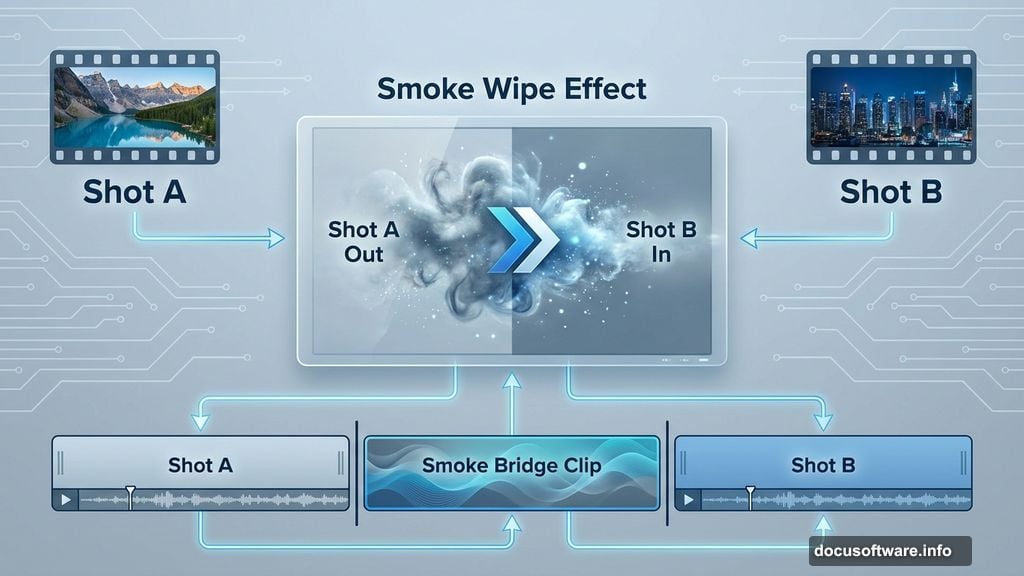
Forget traditional wipe transitions. Instead, create short “bridge clips” that sit between your two shots.
In Text to video, describe full-frame elements like smoke, blur, light leaks, or abstract textures. Specify direction and camera language: “smoke wipe left-to-right” or “light leak expanding from center.”
Settings, emotions, and camera angles help maintain movement consistency. If your transition needs to match surrounding footage tonally, upload a motion reference video.
This approach feels more cinematic than plugin transitions. Plus, you control every aspect through your prompt instead of fighting preset limitations.
Turn Stills Into Animated Transitions
Already have the perfect still image? Image to video transforms it into an animated clip in minutes.
Upload your image as the first keyframe. For more controlled results, add a second still as the ending frame. This gives Firefly a clear start and end point.
Describe the movement and atmosphere in your prompt. “Slow push-in with soft focus” creates different results than “quick zoom with sharp details.”
Firefly offers simple camera motion controls: pan, tilt, zoom. Use these to match the pace of your surrounding edit. Smooth, slow movements work for contemplative sequences. Quick movements suit action cuts.

Layer Effects With Transparent Backgrounds
Here’s where Firefly really shines. Generate video with transparent backgrounds for your VFX elements.
This eliminates tedious masking work. Drop the MP4 into your timeline above your footage, and the effect layers cleanly without green screen keying or roto work.
Adjust blend modes and opacity to taste. Most effects work best between 40-70% opacity, depending on intensity.
Sync Custom Audio to Your Visual Effects
Visual effects need sound design to feel complete. Firefly’s Audio module includes Voice to sound effects, which generates synced audio from your voice performance.
Upload your video clip or just the audio track. Then perform the timing vocally – whooshes, hits, ambient sounds. Firefly generates matching sound effects that sync perfectly with your visual.
This workflow feels much more intuitive than hunting through sound libraries. Plus, the timing matches exactly because you performed it.
Set Technical Specs That Match Your Edit
Before generating, set your aspect ratio and resolution to match your sequence settings. Mismatched specs create quality problems later.
You can also set target frame rates. If you’re editing 24fps, generate at 24fps. The smoother your technical specs align, the better the final integration.
For commercial projects, check Firefly’s usage terms. Most features allow commercial use, but specific restrictions sometimes apply depending on your account type.
Refine Through Iteration, Not Perfect First Takes
Nobody gets perfect results on the first generation. Plan for three to five iterations minimum.
Generate your first batch. Pick the closest match. Then make one small change to your prompt and generate again. This gradual refinement produces better results than completely rewriting prompts each time.
Track which prompt changes create which effects. You’ll build a mental library of what language produces specific results.
Export and Integrate Into Your Timeline
Download generations as MP4 files. Then drop them into your sequence like regular footage.
For transparent background effects, most NLEs recognize the alpha channel automatically. If not, manually set the clip’s interpretation to include transparency.
Color grade your generated clips to match surrounding footage. Firefly creates clean images, but they rarely match your existing color grade perfectly out of the box.
Understand Firefly’s Content Credentials System
Firefly labels AI-generated content through Content Credentials. This metadata travels with your video file and identifies it as AI-generated.
Most commercial uses permit Firefly-generated clips, but always verify terms for your specific use case. Your prompts and outputs remain private unless you choose to submit them publicly.
You can opt out of Adobe using your content for AI training through your account preferences. Check these settings before generating sensitive material.
Three Mistakes That Ruin AI-Generated Effects
First, vague prompts produce vague results. “Cool transition” tells Firefly nothing. “Light leak wipe left-to-right, warm tones, soft edges” gives it actionable direction.
Second, ignoring motion reference videos when you need movement to match existing footage. Upload references. The results improve dramatically.
Third, accepting first generations. Always iterate. The difference between generation one and generation five is massive.
When AI Effects Work Better Than Traditional Methods
AI-generated effects excel at abstract elements: smoke, light leaks, particles, textures. These traditionally required expensive plugin libraries or stock footage subscriptions.
They also shine for quick turnaround projects. Generate a custom transition in five minutes versus spending an hour searching stock libraries.
However, AI struggles with specific branded elements or precise technical requirements. For those, traditional methods still win.
Creating professional video effects doesn’t require mastering After Effects anymore. Firefly democratized VFX in ways that seemed impossible three years ago.
The key is treating it like any production tool. Plan your shot. Iterate on results. Match technical specs. Sound design completes the illusion.
Start with simple overlays and transitions. Build your prompt library through experimentation. Then graduate to complex effects as you understand what language produces specific results.
Your edits will feel smoother, your production value will jump noticeably, and you’ll spend less time searching stock libraries. That’s a genuine workflow improvement, not just AI hype.