
If you’ve ever spent way too long tweaking curves and color grading trying to nail that perfect film look, this Photoshop tool might save you a serious amount of time.
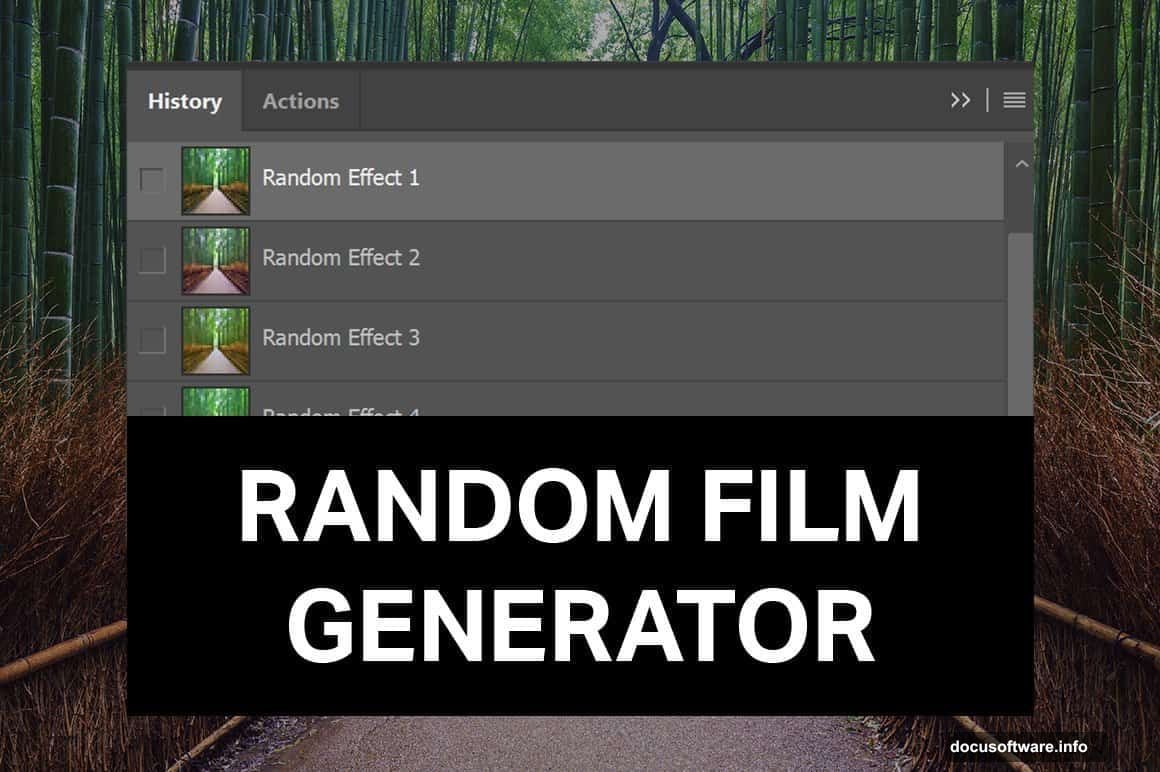
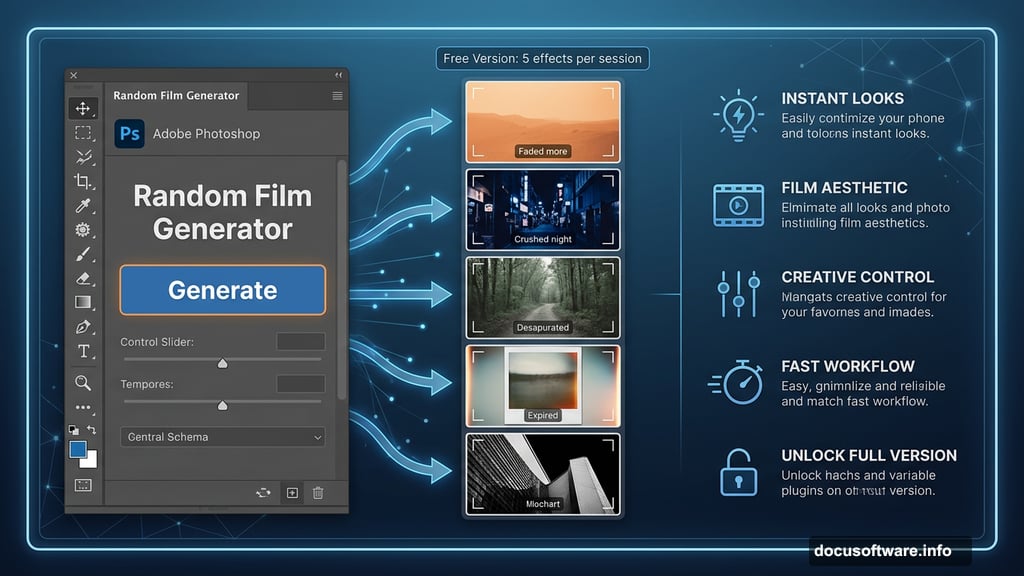
The Random Film Generator is a set of Photoshop actions that creates film-style photo effects with a single click. Each click produces something different, so you’re not just slapping the same vintage filter on every shot. Instead, you get variety — everything from classic photographic film aesthetics to expired Polaroid vibes.
What the Free Version Gets You
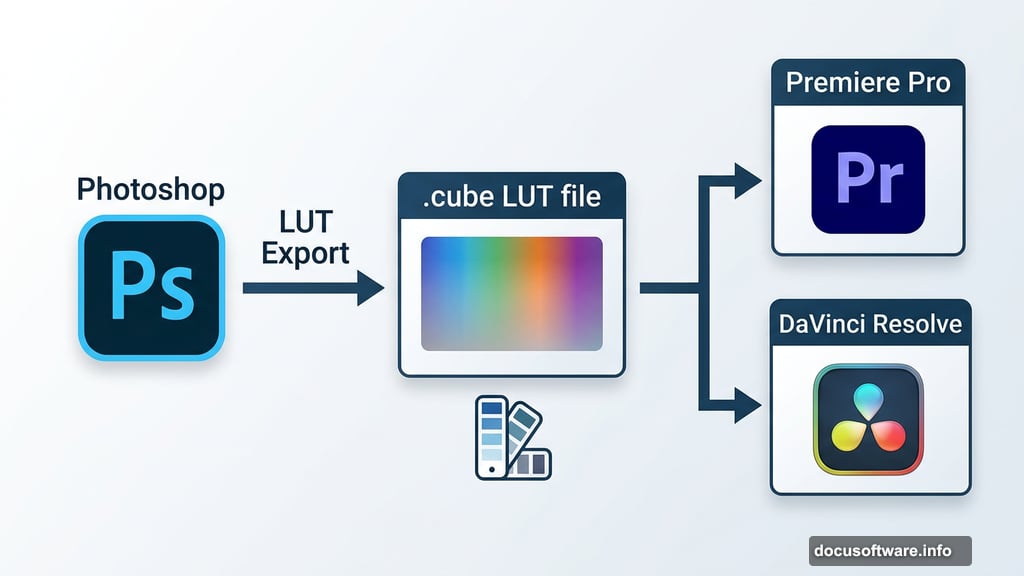
The free version is genuinely useful, not just a teaser. You can generate five unique film effects per session and export them as LUTs (Lookup Tables) to use in other software like Premiere Pro or DaVinci Resolve.
The free effects randomize contrast and fade, which covers a lot of ground for casual editing. So if you’re experimenting with film looks for the first time, this is a solid starting point.
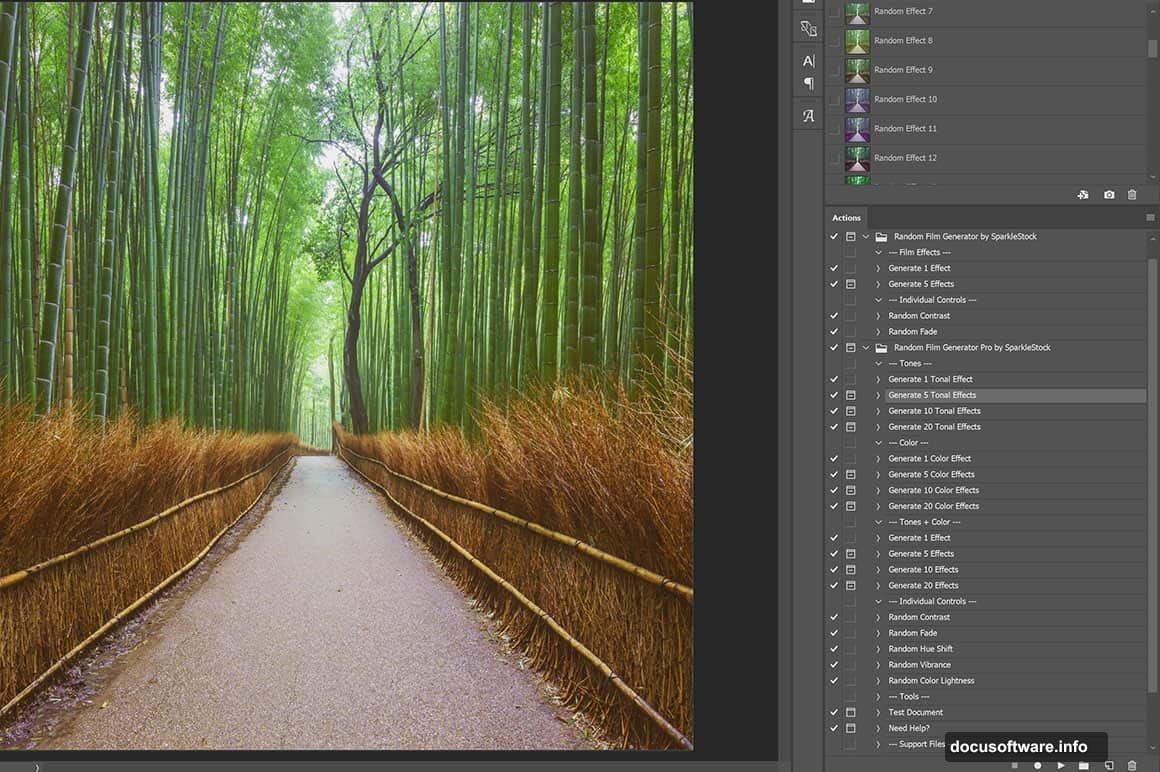
Pro Version Film Simulation Features
The paid Pro version steps things up considerably. Instead of five effects, you can generate twenty at a time.
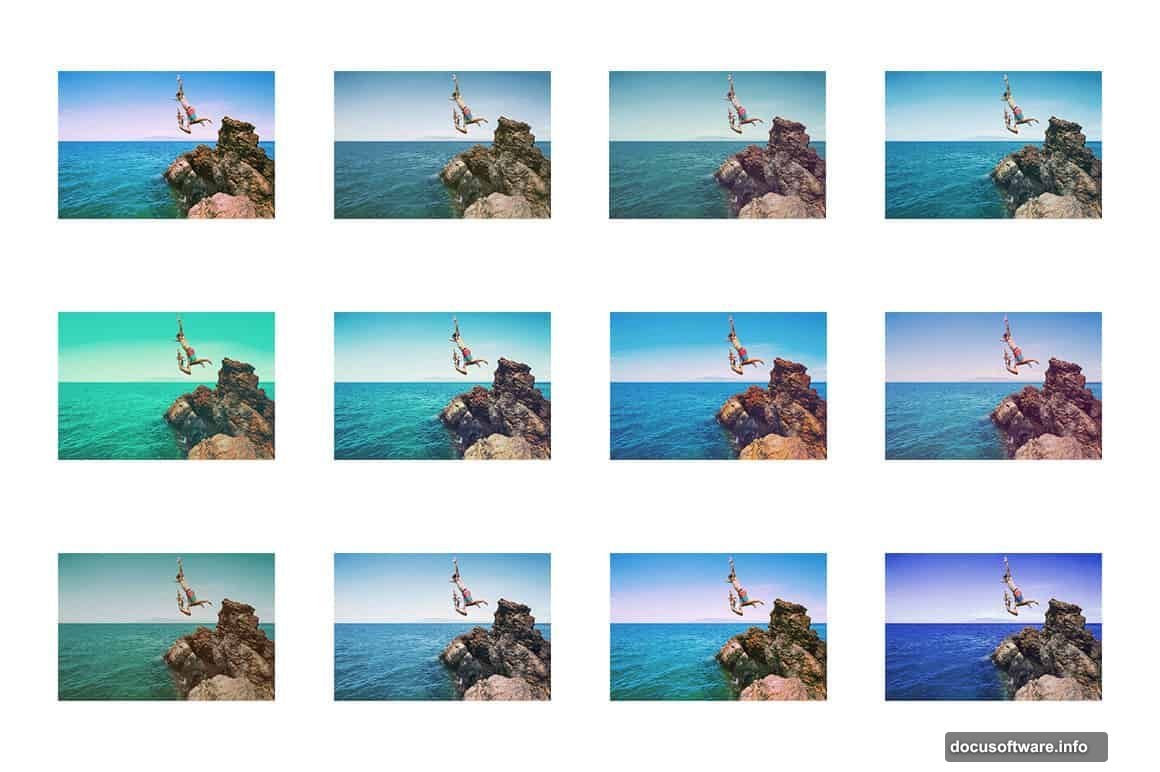
Plus, the randomization goes much deeper. Beyond contrast and fade, the Pro version also randomizes hue shifts, vibrance, and color lightness. That combination produces a much wider range of distinct looks. For photographers who shoot a lot and want each project to feel unique, that variety matters.
LUT Export Makes It Flexible
One genuinely practical feature is the LUT export option in both versions. LUTs are essentially color recipes you can apply anywhere. So if you stumble onto a film look you love inside Photoshop, you can save it and use it in video editing software too.
That kind of cross-app compatibility makes the tool far more versatile than a standard Photoshop action.
What Real Users Actually Think
Community feedback on this tool is mixed, which is worth knowing before you buy.
Some users appreciate it as a quick creative starting point. Steven M called it “another great and useful tool in graphics enhancement application.” On the other hand, Ed Labaco noted that the variance between looks can feel average, and that it sometimes takes many batch generations before you land on something truly unique. He suggested improvements like more crushed blacks and stronger S-curve options.
One commenter also pointed out that if you need professional-grade film simulation, dedicated products from companies like Mastin Labs or RNI serve a different purpose entirely. The Random Film Generator is more of a fun creative exploration tool than a precise film recreation suite. That distinction matters depending on what you’re trying to accomplish.
Is the Pro Version Worth Buying?
Honestly, it depends on how you work. If you regularly need fresh, varied color grades and want to skip the manual tweaking process, the Pro version’s expanded randomization and higher output per session make it worthwhile.
But if you just want to play around with film aesthetics occasionally, the free version covers the basics well. Download it, run a few effects, and see if the output matches what you’re after. The LUT export alone makes the free version worth grabbing.
You can find both versions through SparkleStock. The Pro version is a one-time purchase, not a subscription, which is always a welcome change.