
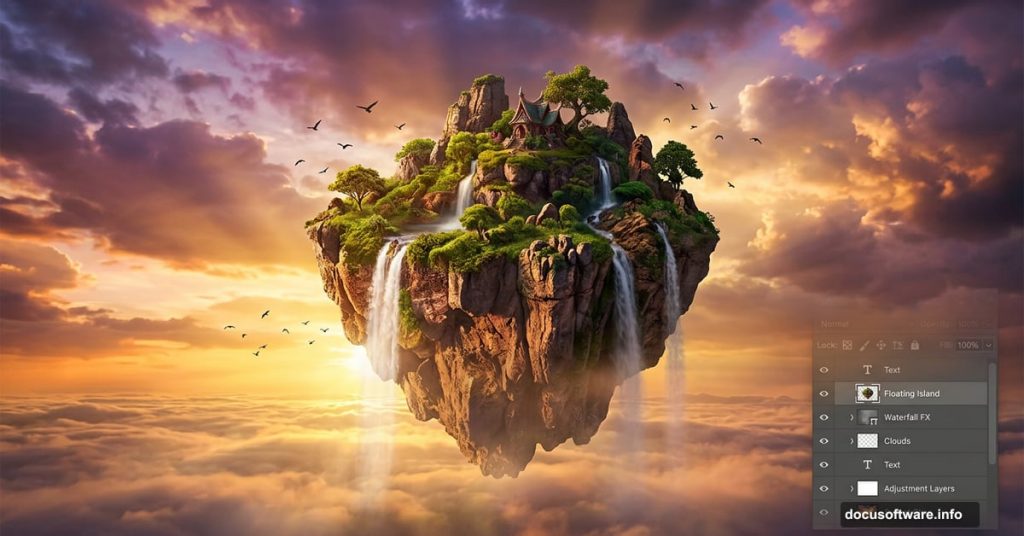
Ever watched Avatar and thought, “I want to create something like that”? Those breathtaking floating islands aren’t just for Hollywood. With Photoshop and a few stock images, you can build a stunning sunset world complete with drifting landmasses, dramatic skies, and cinematic atmosphere.
This tutorial walks you through the whole process. You’ll learn professional blending techniques, how to add convincing shadows and highlights, and how to create that gorgeous hazy depth that makes floating island scenes feel truly epic.
![Hero image showing a finished Photoshop photo manipulation of Avatar-style floating islands at sunset with dramatic lighting and atmospheric haze]
What You Need Before Starting
First, grab your stock resources. Everything used here carries royalty-free or Creative Commons licenses, so you’re good to use them freely.
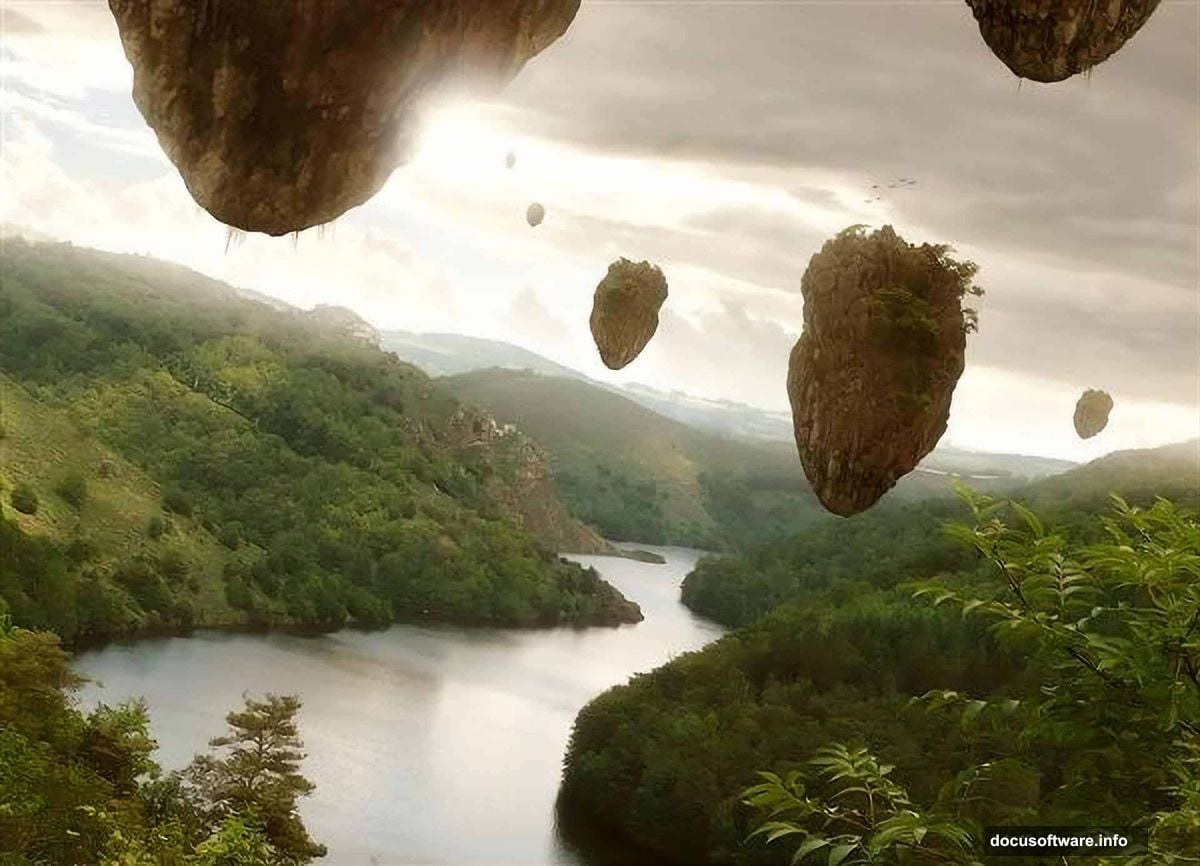
Here’s your resource list:
- River Stock 3 by cat-in-the-stock (Royalty Free)
- James Bond Island 1.2 by meihua-stock (Royalty Free)
- Field of Dreams by cubstock (Royalty Free)
- Rons Winter Collection (Royalty Free)
- Bird Brushes by lpdragonfly (Creative Commons)
You’ll also need Adobe Photoshop CS2 or later. The whole project takes about 60 to 90 minutes at a medium skill level. So even if you’re not a Photoshop veteran, this is absolutely manageable.
Setting Up Your Canvas
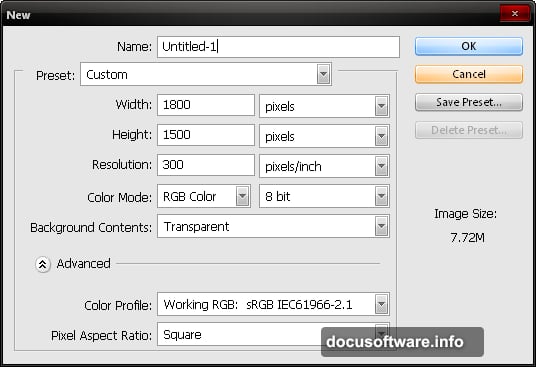
Start fresh with a new file. Since this composition works beautifully as a high-resolution desktop wallpaper, use these exact settings:
- Width: 1800px
- Height: 1500px
- Resolution: 300 dpi
- Color Mode: RGB Color, 8-bit
- Background Contents: Transparent
That resolution gives you crisp detail at full screen size. Plus, it leaves plenty of room to work with your layers without things getting pixelated.
Building the Base Scenery
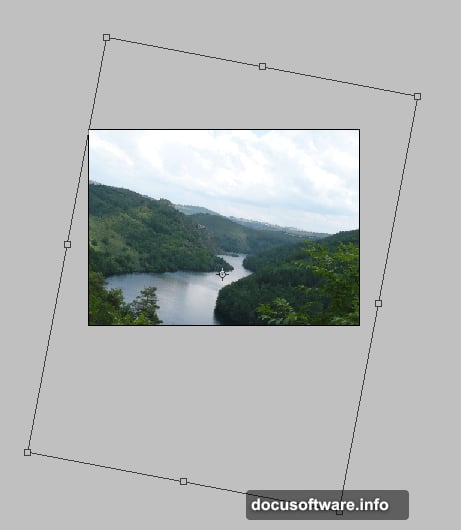
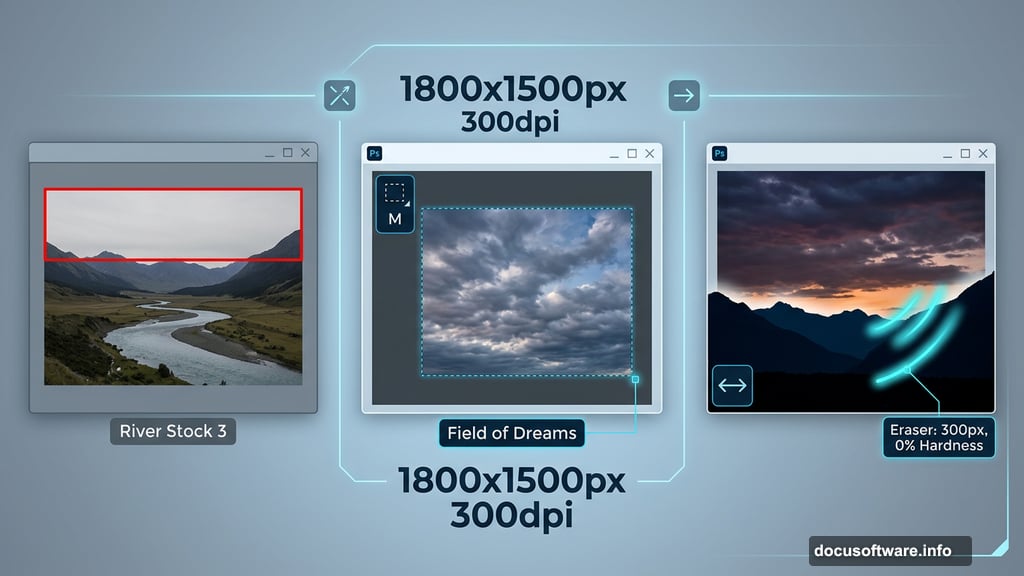
Open River Stock 3 and drag it onto your canvas using the Move tool (V). Once it’s in place, hit Ctrl/Cmd + T to activate the Transform tool and rotate the image to your liking.
Here’s the thing about that sky, though. The original river photo’s sky just doesn’t have enough drama. So you’ll swap it out entirely.
Open Field of Dreams and select just the sky portion using the Marquee tool (M). Drag that selection onto your canvas with the Move tool, then transform it with Ctrl/Cmd + T. Flip it horizontally first, then rotate it to match your scene’s angle. That simple flip creates a much more interesting cloud composition.
Next, you need to erase the parts of the new sky that cover your mountains. Grab the Eraser tool (E) and set it up like this:
- Brush size: 300px
- Hardness: 0%
- Opacity: 100%
- Flow: 100%
The zero hardness is key. It creates soft, feathered edges that blend naturally. Hard edges would immediately look fake, so always keep hardness low when masking landscape elements.
Adding Atmospheric Haze to the Mountains
This step is where the scene starts feeling truly otherworldly. Create a new layer with Ctrl/Cmd + Shift + N and name it “hazy.” Double-clicking the default layer name lets you rename it directly.
Switch to the Brush tool (B) and dial in these settings:
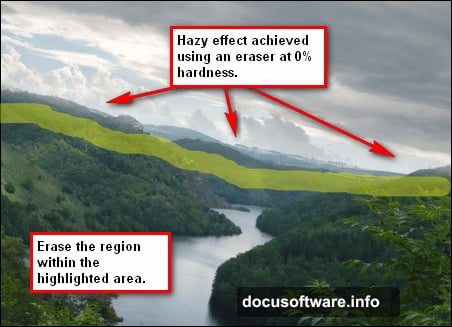
- Brush size: 175px
- Hardness: 0%
- Opacity: 15%
- Flow: 100%
That 15% opacity is intentional. You build the haze gradually with multiple light passes rather than one heavy stroke. Painting lightly over the mountain areas creates the sense of atmospheric distance, which is exactly what makes floating island scenes look believable.
![Supporting inline image showing the Photoshop layers panel with hazy and darken layers applied over the mountain landscape base]
Darkening the Sky for Drama
Flat, uniform skies look boring. Create another new layer and name it “Darken.” Use the same brush settings from the hazy step and paint over sections of the sky you want to deepen.
Sunset scenes benefit enormously from selective darkening. Adding deeper tones toward the upper corners naturally draws the viewer’s eye toward the brighter horizon. It’s a simple trick, but it adds serious cinematic weight to the whole composition.
Placing Your Floating Islands
Now the fun really begins. Open James Bond Island 1.2 and drag it onto your canvas. This image runs large, so resize it immediately with Ctrl/Cmd + T.
James Bond Island works perfectly for this type of composition because of its dramatic vertical rock formations. Those jagged limestone pillars read instantly as fantastical floating terrain. Rotate and position it so it sits naturally within your sky space, keeping in mind where your light source is coming from.
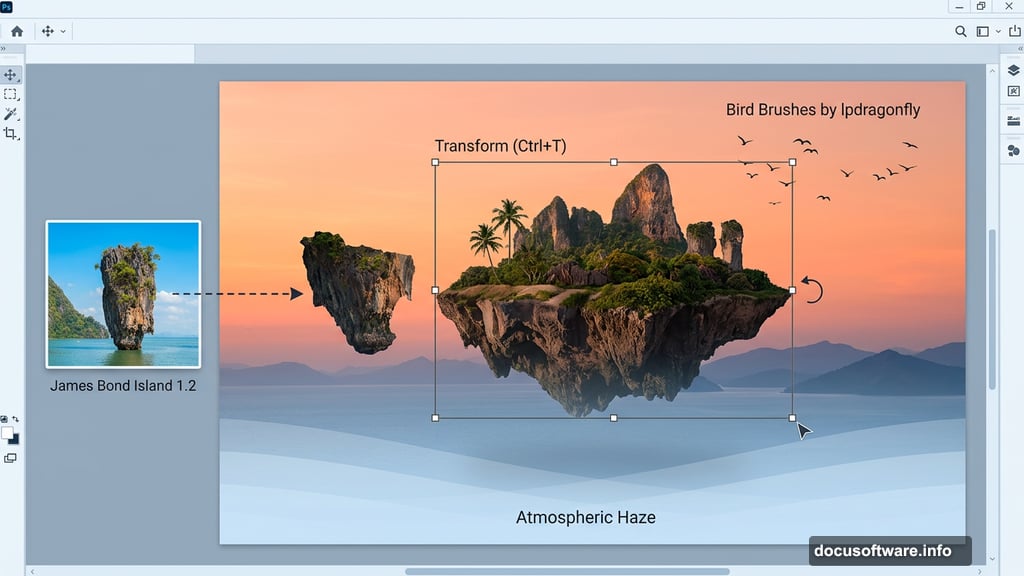
The goal here is to make the island feel like it genuinely belongs in that atmosphere. Matching the island’s shadow direction to your painted sky lighting is the detail that separates a convincing manipulation from one that looks obviously fake.
Blending Techniques That Sell the Effect
Throughout this project, two blending approaches do most of the heavy lifting. First, the soft focus effect smooths harsh edges between composited elements. Second, luminosity adjustments unify the color temperature across all your separate stock images.
Both techniques work at the layer level, meaning you can adjust them non-destructively at any point. Always work on duplicated or adjustment layers rather than editing your base images directly. That flexibility saves you enormous time when you want to tweak the mood later.
Building a scene like this teaches you something useful about photo manipulation in general. Realism comes from light consistency, not just good cutouts. Every element needs to share the same light source, and atmospheric haze needs to affect distant objects more than close ones. Get those two things right and your composite will look convincing every time.
Avatar’s floating islands captivated audiences because they felt physically real despite being completely impossible. That same logic applies here. Your Photoshop version can carry the same magic when the light, atmosphere, and blending all work together. Give it a try, and don’t rush the haze layers. That subtle atmospheric depth is what really makes the scene sing.