
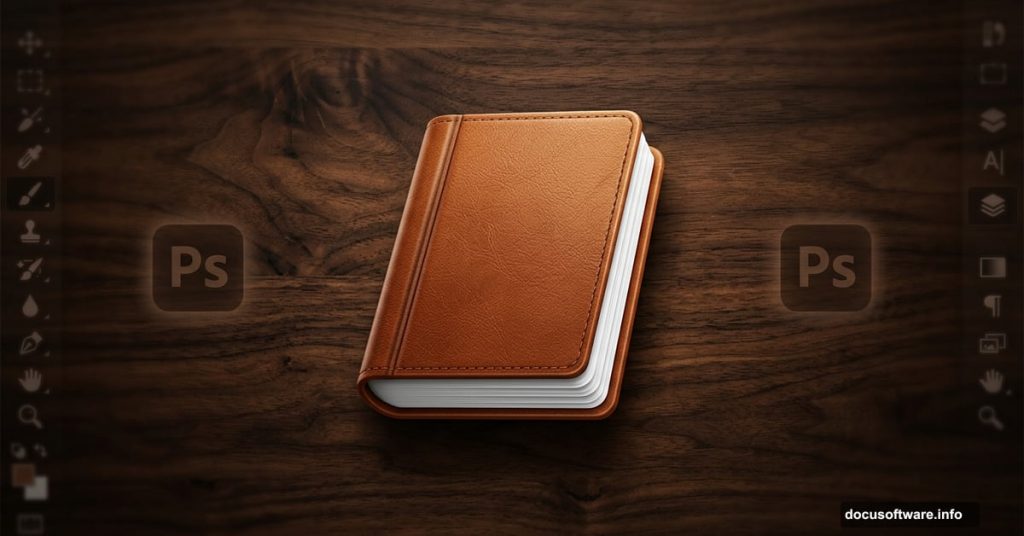
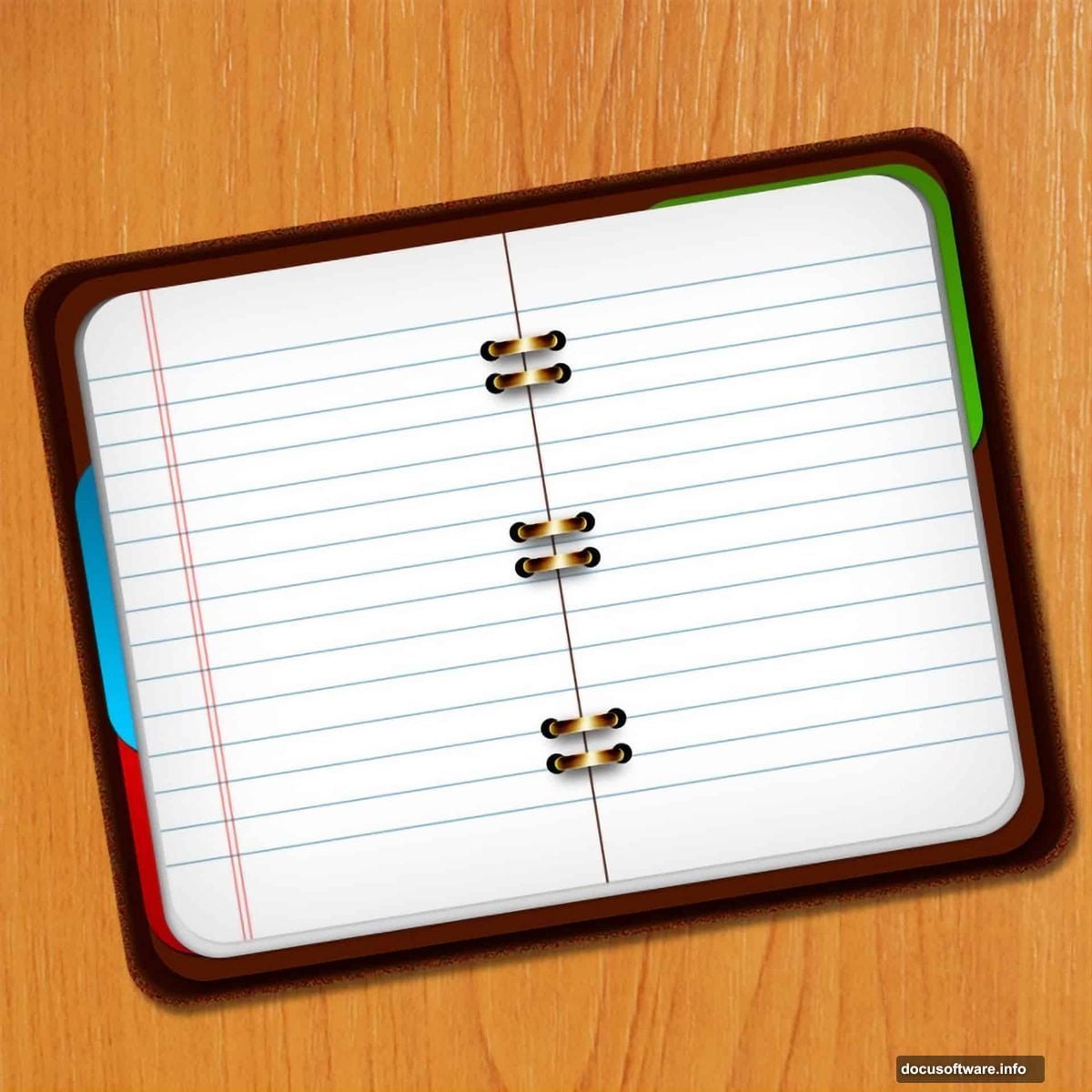
So you want to create a polished notebook icon entirely in Photoshop? Good news: this project is much more approachable than it looks. You’ll work through rounded rectangles, layer styles, noise filters, and a few clever blending tricks to build something that looks genuinely professional.
This walkthrough covers every step clearly, so whether you’re brand new to Photoshop or just brushing up on icon design, you’ll be able to follow along without getting lost.
Setting Up Your Canvas and Background
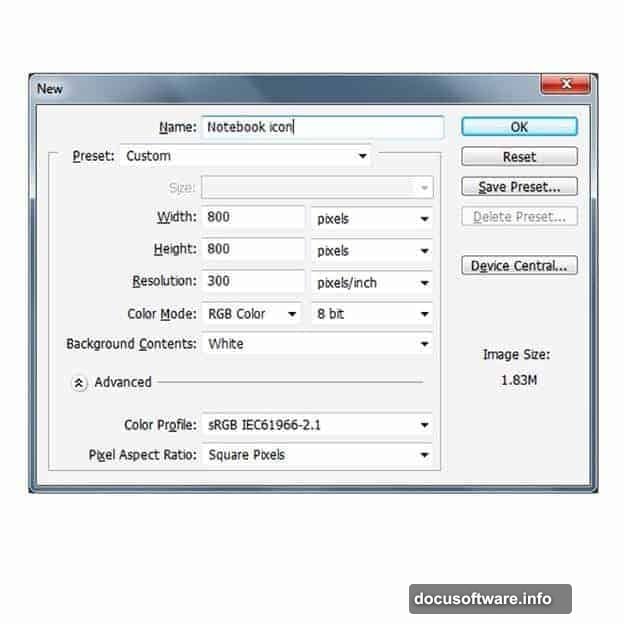
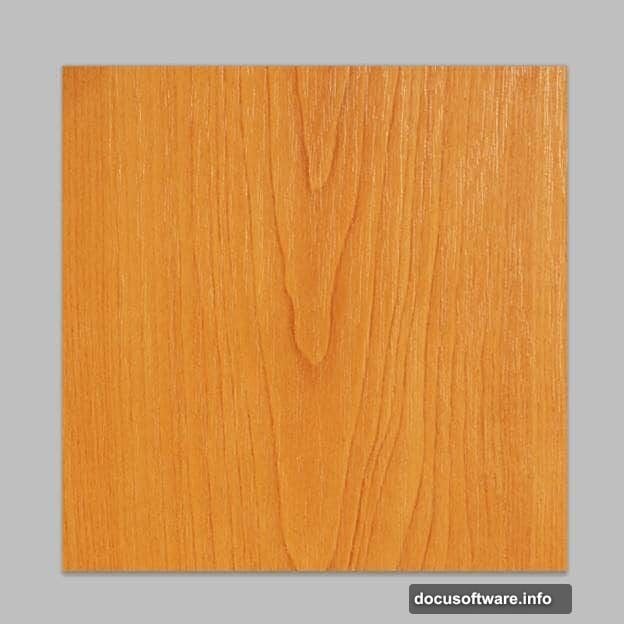
First, open Photoshop and create a new document. Once your canvas is ready, download the wooden background texture from sxc.hu and place it into your file.
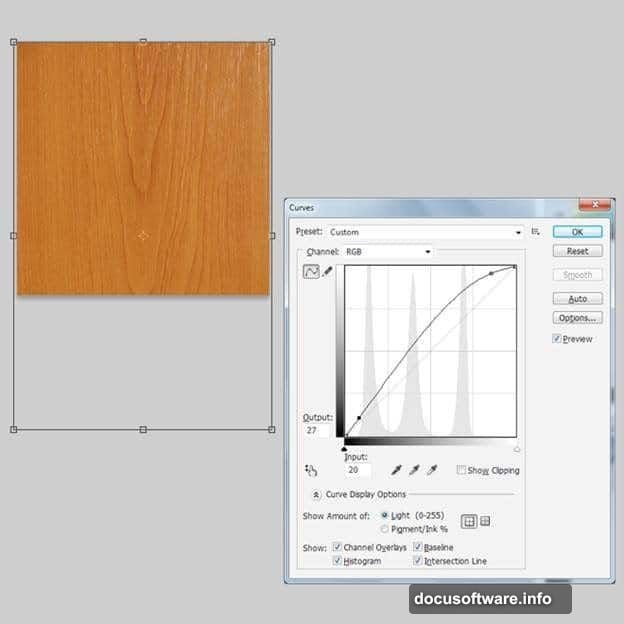
Press Ctrl+T to scale the texture so it fills the entire canvas. Then head to Image > Adjustments > Curves and tweak the curve to give the wood a richer, moodier tone. This background adds instant depth to your final composition.
Building the Notebook Cover Layers
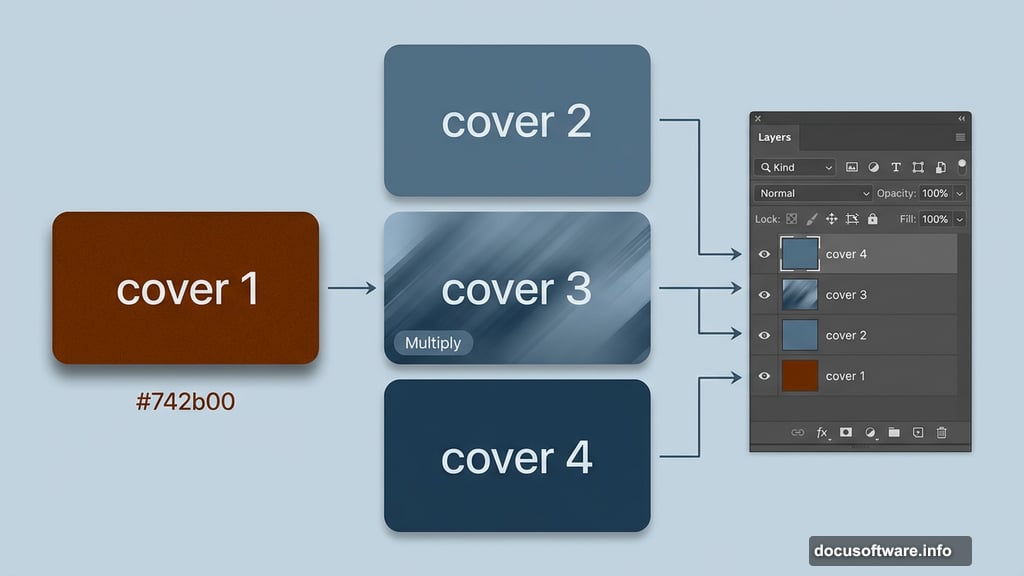
Here’s where the fun begins. The cover is actually built from four stacked rounded rectangles, each adding a different visual quality.
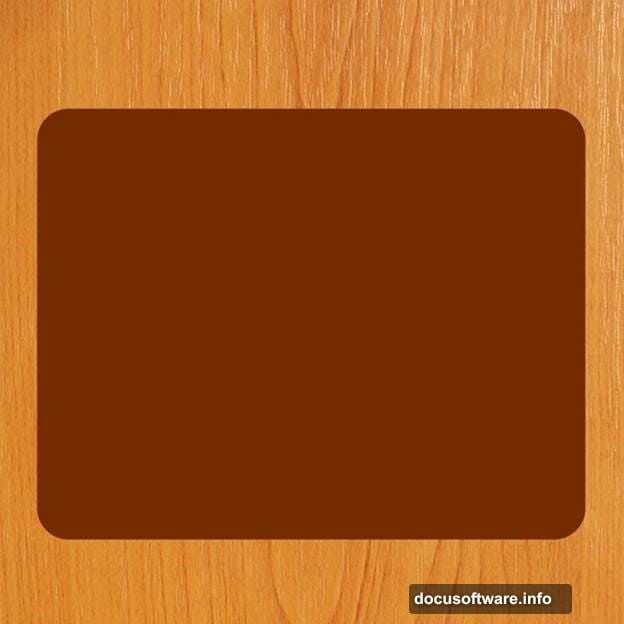
Start with your Rounded Rectangle tool (press U) and set a fixed size of 700px by 550px with a 40px radius. Fill this shape with color #742b00 for a warm, dark brown. Then go to Filter > Noise > Add Noise to give the surface some gritty texture. Right-click the layer and open Blending Options, then add a Drop Shadow. This becomes “cover 1.”
Next, create a second rounded rectangle with the same 700x550px dimensions and a 40px radius. Fill it with #5c3016, then press Ctrl+T to scale it slightly smaller than cover 1. Name this layer “cover 2.”
Duplicate cover 2. Click the layer thumbnail and swap the fill color to #742b00. Name this copy “cover 3.” Apply Filter > Noise > Add Noise, then follow up with Filter > Blur > Motion Blur to create a streaky, grain-like wood texture. Set this layer’s blend mode to Multiply for a beautifully natural result.
For the fourth layer, create a rounded rectangle at 660px by 520px and fill it with #571803. Add a layer style to finish the look. Name this one “cover 4.”
Adding the Paper Stack
Now you’ll add the white pages that peek out from inside the cover. This section uses two white rectangles with smart layer styles to simulate stacked paper.
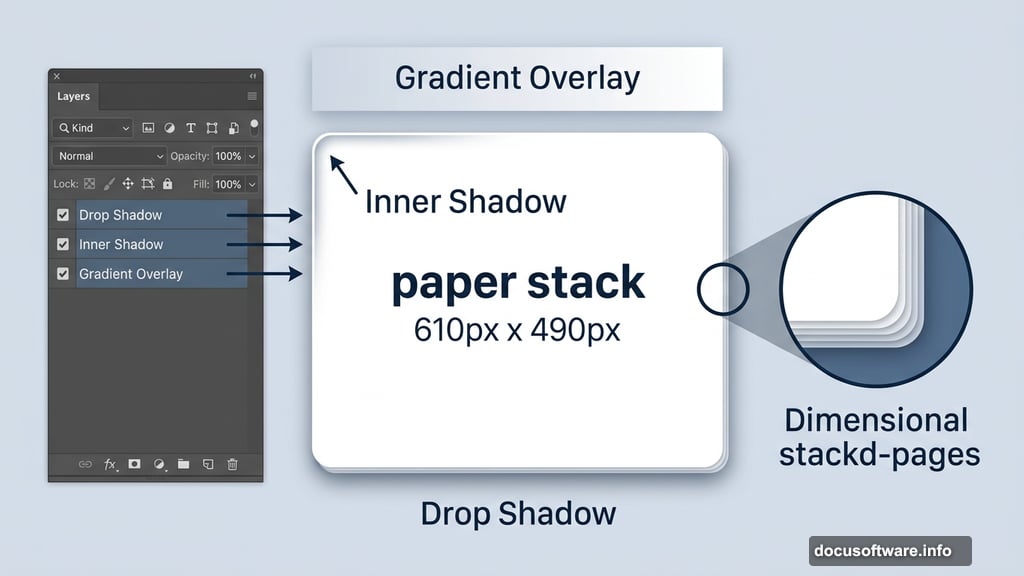
Create a rounded rectangle at 610px by 490px and fill it with #ffffff. Open its layer styles and apply these three effects: Drop Shadow, Inner Shadow, and a Gradient Overlay. The gradient keeps the paper from looking flat and gives it a slight dimensional quality.
Create one more white rounded rectangle at the same 610px by 490px size. Scale it just a tiny bit smaller than the previous one, then name this layer “Paper.” Apply Drop Shadow and Inner Shadow styles here too. The result looks like a neat stack of pages sitting inside the cover.
Drawing the Center Spine Line
This detail is small but makes a big difference. The spine line runs vertically down the middle of the paper, suggesting the notebook’s binding.
Create a new layer and name it “Middle line.” Select the hard brush (press B) and set the size to 2px. Change your foreground color to #742b00 to match the cover tone. Now switch to the Pen tool (press P) and draw a vertical path straight down the center of your Paper layer.
Right-click the path and choose Stroke Path, then select Brush as your tool. This traces your pen path with the 2px brush, giving you a clean, precise line. If Stroke Path appears grayed out, check that you’re using the correct pen mode. Look at the toolbar for the middle icon showing a pen with a small square. That’s the path selection mode you need.
Why Layer Styles Matter So Much Here
The Drop Shadow and Inner Shadow combinations do most of the heavy lifting in this project. They create the illusion that pages have thickness and the cover has physical weight.
The Motion Blur technique on cover 3 is especially clever. Combined with the Multiply blend mode, it mimics the natural grain variation you’d see in real leather or textured cardstock. It’s a small step that adds a lot of believability.
Plus, the Noise filter on the cover shapes roughens up what would otherwise look like flat digital gradients. Small texture details like that separate icons that look polished from icons that look generic.
Finishing Touches Worth Knowing
A few tips that save time and frustration as you wrap up.
Always name your layers as you go. With this many rounded rectangles stacking on top of each other, unnamed layers turn into a confusing mess fast. The naming convention in this tutorial (cover 1 through cover 4, then Paper, then Middle line) gives you a logical order that’s easy to navigate.
Also, when scaling layers with Ctrl+T, hold Shift to constrain proportions. The cover layers need to nest cleanly inside each other, so keeping the scaling consistent makes the final icon look intentional rather than accidental.
If your stroke path result doesn’t match what you expected in step 23, the fix is usually simple. Make sure your brush settings are correct before drawing the path, because Photoshop strokes the path using whatever your brush tool is currently set to. A 2px hard brush gives you the clean line this tutorial calls for.
This project is a great introduction to icon design in Photoshop because it teaches you to think in layers. Each piece of the notebook is its own shape, and the finished look comes entirely from how those shapes interact with each other through blending modes and styles. Once you understand that workflow, creating other icons follows the same logic. The techniques here transfer directly to buttons, badges, app icons, and any other interface element you want to build.