

Most people treat AI image generators like a vending machine. You punch in a vague idea, hope something good pops out, and repeat until you get lucky. But Adobe Firefly works very differently from that.
The tool responds best to clear, deliberate creative direction. Think of it less like guessing a password and more like briefing a talented designer. The more specific and visual your instructions, the faster you get to something you actually want to use.
Here’s what actually moves the needle when prompting in Firefly.
Describe What You See, Not What You Want Done
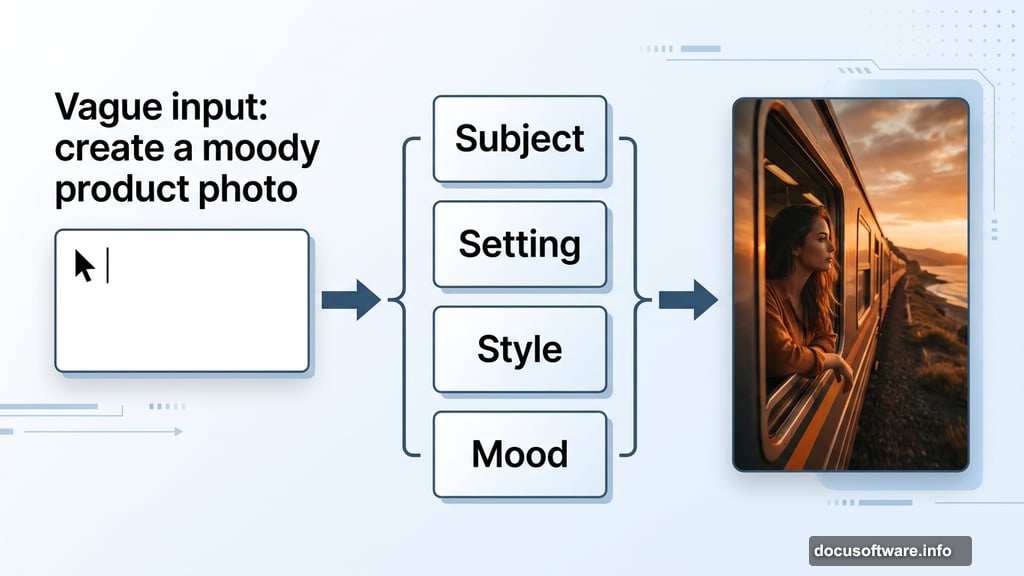
This one trips up almost everyone starting out. Words like “create,” “make,” or “generate” don’t help Firefly at all. The model already knows it’s generating an image. What it needs is a description of that image.
So instead of saying “create a moody product photo,” describe what you’d see in the finished shot. What’s the product? Where does it sit? How is it lit? What’s in the background?
Picture the finished image before you type a single word. That mental image becomes your prompt. And the more visual, concrete, and specific that description is, the closer Firefly gets on the first try.
Build Every Prompt Around Four Essentials

Staring at a blank prompt box is a bit like staring at a blank canvas. It helps to have a simple framework before you start typing.
Break your prompt into four parts: the subject, the setting, the style, and the mood. Together, these four elements cover most of what Firefly needs to understand your vision.
Take a travel image as an example. “Woman on a coastal train at sunset” gives you subject and setting. But add “editorial photo” for style and “warm, reflective mood” for atmosphere, and now you have something Firefly can really work with. Plus, this structure makes troubleshooting much easier. If the image is mostly right but the atmosphere feels wrong, you know exactly which element to adjust.

Use Firefly’s Built-In Controls Before Rewriting
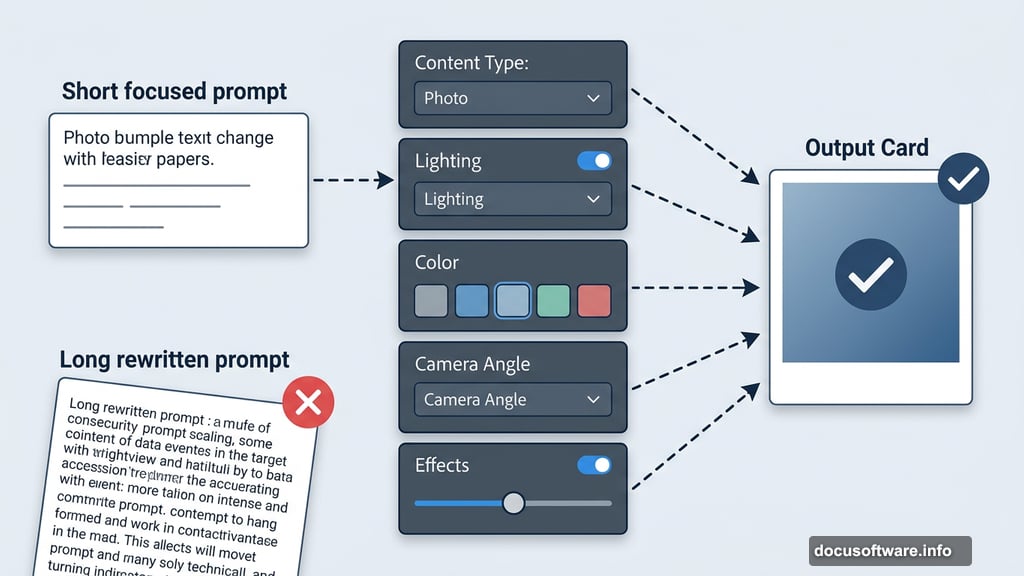
Here’s a mistake that costs a lot of time: rewriting the prompt when the real problem is a setting. Firefly gives you built-in controls for content type, lighting, color, effects, and camera angle. These often fix issues faster than typing another version of the same description.
Image feels too flat? Adjust the lighting. Framing looks off? Change the camera angle. The overall finish looks wrong? Switch the content type from Art to Photo. These controls take seconds to change, while rewriting an entire prompt takes much longer and might not actually solve anything.
A short, focused prompt paired with the right settings almost always beats a long, sprawling prompt trying to cram every detail into one line.

Style References Make Output Predictable
Describing a visual style in words is genuinely hard. Words like “cinematic” or “painterly” mean different things to different people. That’s exactly where style references earn their place.
Upload an image that captures the look you want, and Firefly uses it to anchor the visual direction of your output. This is especially powerful when you need a set of images that feel connected. A single social graphic is easy to improvise. But a whole campaign with consistent aesthetic? Style references make that achievable without writing an essay for every prompt.
With a reference locked in, you can focus your actual prompt on the subject and scene. The reference handles the broader visual language.
Composition References Solve Layout Problems Fast
Sometimes the prompt is fine. The problem is where things sit in the frame. If you need a hero image with specific spacing for text, a product shot with a particular balance, or any image where positioning really matters, a composition reference is far more reliable than hoping the framing lands right.
Upload a source image and Firefly uses its outline and depth as a structural guide. A strength slider lets you control how closely the new image follows that original layout. Photoshop’s Generate Image feature supports the same approach, so you can carry a layout decision from early concept right through to final edits without starting over.
Know When to Stop Prompting and Start Editing
There’s a point in every session where rewriting the prompt stops being the fastest path forward. Once the subject and general direction are in place, switching to direct editing usually gets you to a final result much faster.
Firefly and Photoshop are designed to work together for exactly this reason. Get a strong first image through prompting, then use Photoshop’s generative tools to refine details, fix specific areas, or explore variations while keeping the overall direction you’ve already established.
Chasing a perfect one-shot result from prompting alone takes longer than most people expect. But a solid prompt followed by targeted edits? That combination is surprisingly quick, even for something you plan to publish or print.
The best Firefly workflows treat prompting as the starting point, not the whole journey. Get close fast, then edit with purpose.
Post Title: Adobe Firefly Prompts That Nail the Image on Your First Try
SEO Title: Adobe Firefly Prompts: 6 Tips for Better AI Images
Meta Description: Most people treat AI image generators like a vending machine. You punch in a vague idea, hope something good pops out, and repeat until you get lucky. But [Adobe