

Ever wanted to create one of those dramatic, moody underwater compositions you see on movie posters? This tutorial walks you through building a complete fantasy scene — a very unlucky fisherman dangling above a very hungry shark — using Photoshop’s most essential tools.
And here’s the best part. By the time you’re done, you’ll have a solid grip on layer masks, smart objects, clipping layers, and blending modes. These are the building blocks of almost every serious Photoshop project.
Let’s get into it.
What You’ll Need Before Starting

You’ll need Photoshop CS3 or newer for this one. The tutorial uses stock resources including underwater photography, a nebula image, a shark illustration, a fisherman photo, a boat, blood brushes, water splash brushes, cloud brushes, and a few fish and squid images.
All resources are listed in the original tutorial, sourced from places like Pixabay, FreeImages, and DeviantArt stock contributors. Grab everything before you start so you’re not hunting mid-project.
Setting Up Your Canvas
Start by creating a new document at 1500 x 1895 pixels. This vertical format works perfectly for the composition — it gives you room for the dark ocean depths at the bottom and the stormy surface up top.

Think of it like building a stage before the actors arrive. Everything you add later will live within this space, so getting the dimensions right from the start saves headaches.
Smart Objects: Your Best Friend in Photoshop
Before pasting anything into your document, there’s one habit worth building immediately. Every time you paste an image layer, right-click it and choose “Convert to Smart Object.”
Why does this matter? Smart objects protect your pixel data. When you resize a regular layer down and then try to scale it back up, Photoshop has already thrown away the original information. You get a blurry mess. Smart objects remember the original, so you can resize freely without losing quality.
To paste any image, open it, press Ctrl+A to select all, then Ctrl+C to copy. Switch to your main document and press Ctrl+V to paste. Then hit Ctrl+T to enter Free Transform, hold Shift while dragging corners to resize proportionally, and position it where you need it.
Get comfortable with this workflow. You’ll repeat it many times.
![A layered Photoshop composition showing an underwater shark scene with a fisherman above, demonstrating smart objects and layer mask techniques]
Building the Underwater Atmosphere
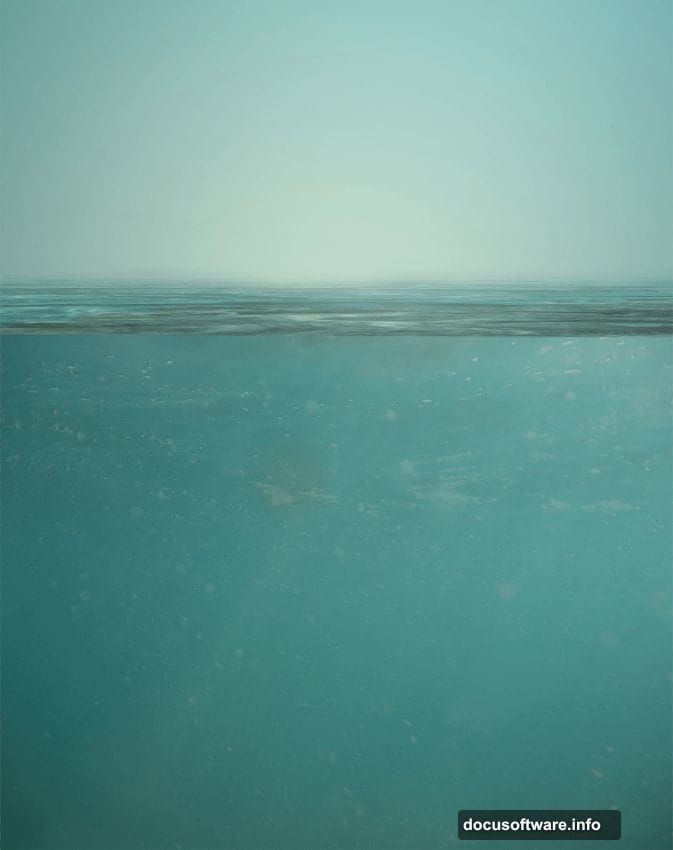
Open the first underwater image and paste it into your document as described above. Resize and position it to fill the canvas. This becomes your foundation — the murky ocean world everything else sits inside.
Next, bring in the nebula image. Paste it in, resize it to cover the canvas, and then change its blending mode to Overlay. You’ll find the blending mode dropdown at the top left of the Layers panel.
The Overlay mode does something almost magical here. Instead of just sitting on top like a flat image, it blends with the layer below based on luminosity and color. Dark areas deepen, light areas brighten, and the whole scene suddenly feels more atmospheric and otherworldly. It’s one of those Photoshop tricks that looks complicated but takes about five seconds.
Layer Masks: How to Hide Without Deleting
Here’s where things get really useful. Layer masks are probably the most important non-destructive tool in Photoshop, and this project uses them constantly.
The concept is straightforward. Add a mask to any layer, and you can paint on it with black to hide parts of that layer or white to reveal them. You’re not deleting anything — you’re just controlling what’s visible. Change your mind? Paint the opposite color and it comes right back.
To add a layer mask, click the rectangle-with-a-circle button at the bottom of the Layers panel. Or go to Layer > Layer Mask > Reveal All. Then grab a soft brush, set your foreground color to black, and paint over any part of the layer you want to hide.
One useful trick: painting with 50% opacity partially hides the layer. So you can create smooth, gradual transitions between images rather than hard edges. This is how composites look seamless instead of cut-and-paste obvious.
For this underwater scene, you’ll use masks to blend the ocean imagery together, fade edges smoothly, and make elements like the shark and fisherman feel like they actually belong in the same world.

Bringing the Scene Together
With your base underwater atmosphere in place, the rest of the tutorial builds up the scene layer by layer. The shark, the fisherman, the boat, the dramatic lighting effects, the blood brushes for that extra ominous touch — each element gets added, masked, and blended until the whole thing feels cohesive.
The composition works because it tells a story. Your eye travels from the fisherman at the surface down through the water to the shark lurking below. That kind of visual storytelling is what separates a random photo collage from an actual piece of digital art.
![Photoshop Layers panel showing multiple blended layers including underwater base, nebula overlay, shark, fisherman, and brush effects for the fantasy scene]
Why This Project Teaches So Much
Most Photoshop tutorials focus on one trick. Adjust a color here, remove a background there. This project is different because it forces you to use everything at once in service of a real creative goal.
You’ll practice smart objects because you’re resizing constantly. You’ll master layer masks because the compositing absolutely requires them. You’ll experiment with blending modes because that’s how the atmosphere comes together. And you’ll develop an instinct for layer organization because a project this complex falls apart without it.
Those skills transfer directly to anything else you build in Photoshop — retouching, graphic design, digital painting, whatever direction you take things next.
Give yourself permission to go slowly. The tutorial has multiple pages of steps, and that’s fine. Each step builds on the last. By the time you reach the final version, that unlucky fisherman will look like he absolutely belongs in those terrifying waters — and you’ll have the Photoshop foundation to prove it.