
Creating spirographs and fractals in Photoshop sounds intimidating. Complex mathematical patterns that require advanced coding, right?
Wrong. These mesmerizing designs take just minutes to build once you know the technique. Plus, they work beautifully as standalone art, photo manipulation elements, or graphic design backgrounds.
Let’s break down the exact process that transforms simple shapes into intricate fractals.
Start With Basic Shape Tools
Open a new 2000×2000 pixel document with a black background. Any size works, but square canvases give you more flexibility for rotations.
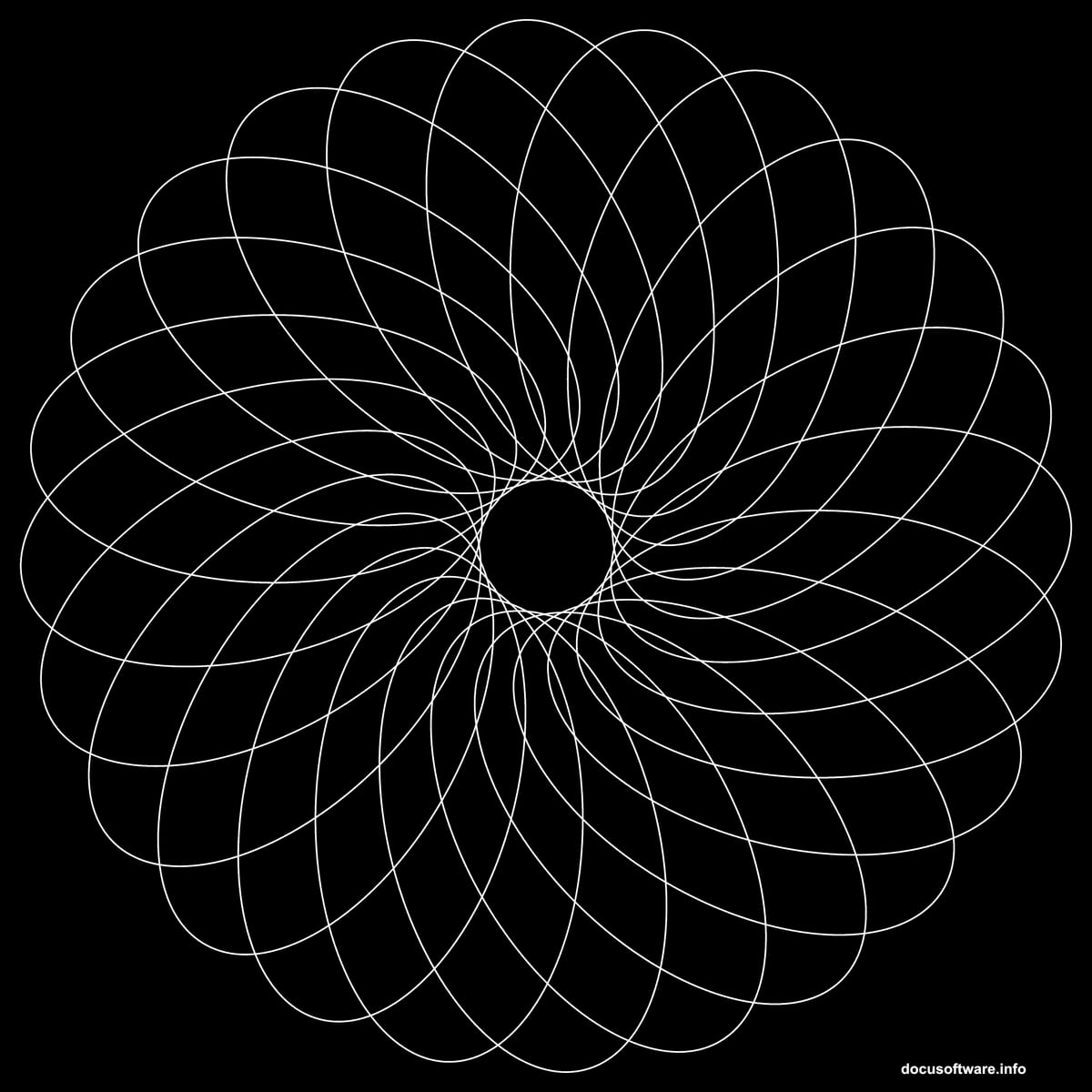
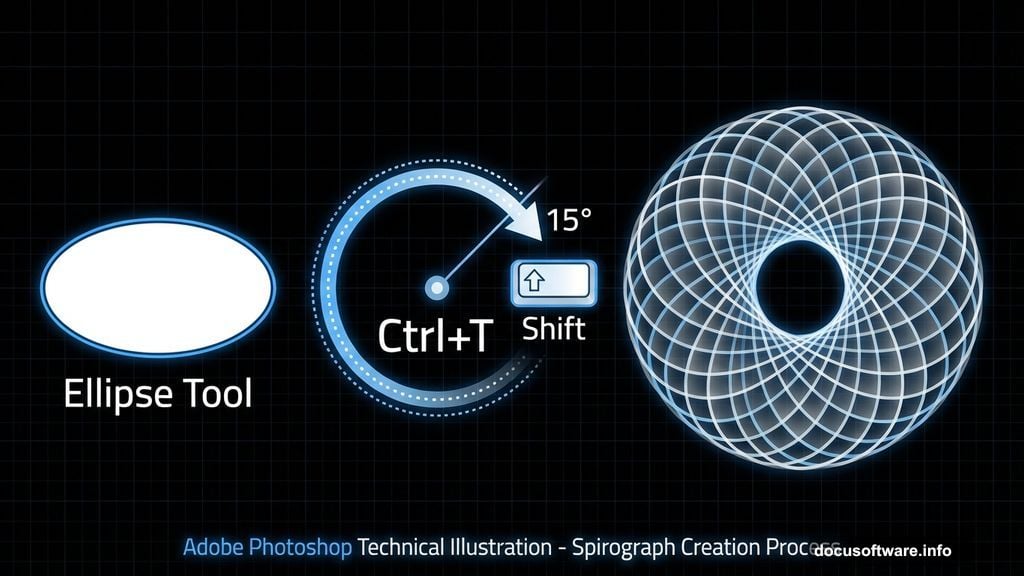
Create a fresh layer and grab the Ellipse Tool. Set the mode to “Shape” with no fill and a white stroke. Draw your ellipse in the document center.
Why start simple? Complex spirographs build from basic foundations. Master the technique with circles before experimenting with irregular shapes.
The Transform Rotation Trick
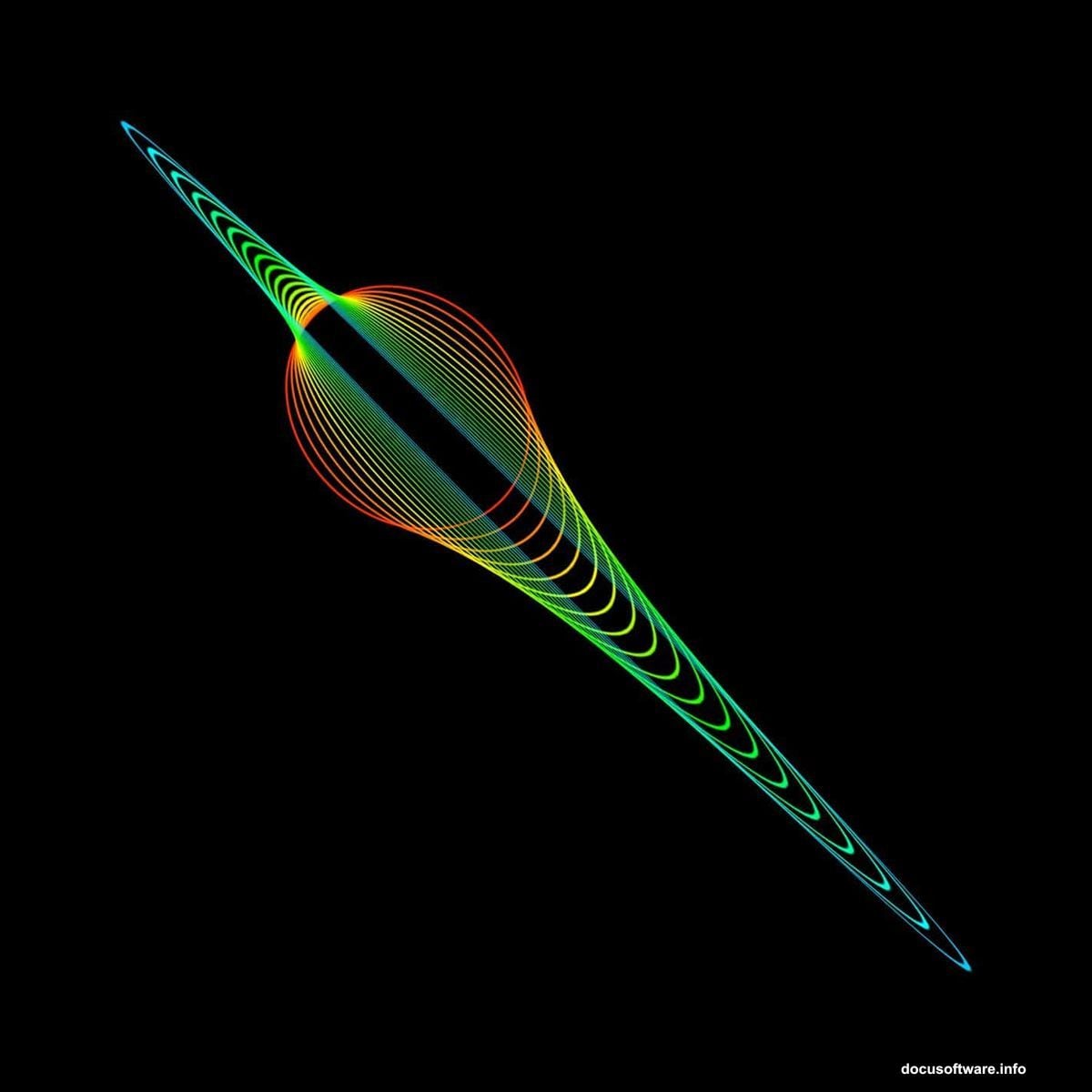
Switch to the Move tool (V) and activate Free Transform (Ctrl/Cmd+T). Click and drag outside the transform box to rotate your shape. Hold Shift while dragging to snap rotations to clean 15-degree increments.
Press Enter to lock in the transformation. Now here’s where things get interesting.
Automate With a Hidden Hotkey
Manually duplicating and rotating shapes takes forever. Photoshop hides a powerful shortcut that automates the entire process.
Switch to the Move tool (V) and press Ctrl+Shift+Alt+T repeatedly (Command+Option+Shift+T on Mac). Each press duplicates the shape and applies your last transformation. Keep tapping until you complete a full circle.
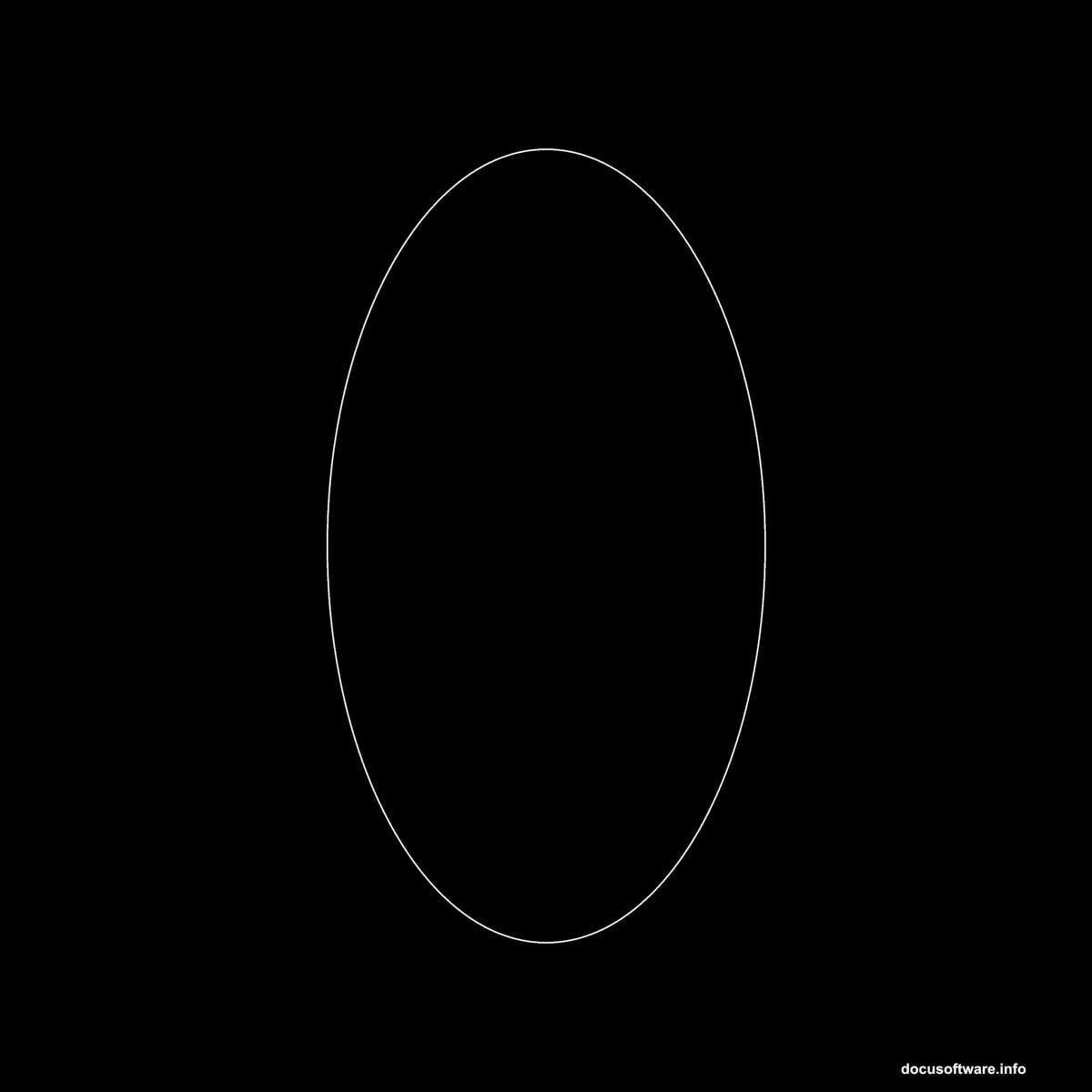
This hotkey transforms minutes of tedious work into seconds of automated magic. Most designers never discover this trick.
Experiment With Transform Settings
Basic rotation creates simple spirographs. Real creativity comes from mixing transform properties.
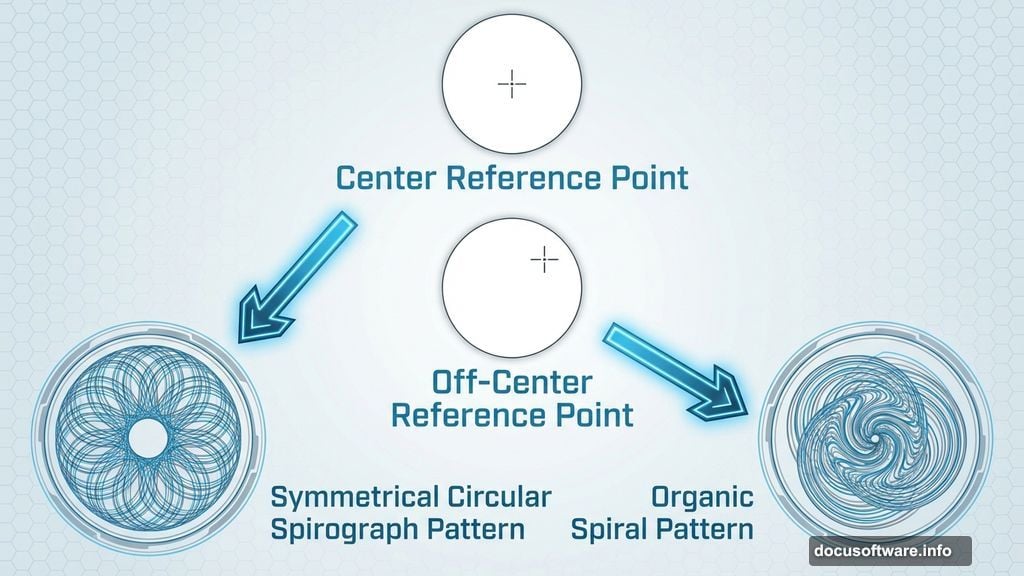
Try moving the reference point before rotating. The reference point determines your rotation axis. Shifting it creates off-center spirals instead of perfect circles.
Also, adjust width and height during transforms. Scaling shapes while rotating produces organic, flower-like patterns. Mix in skew transformations for even more variety.
Each setting combination generates completely different results. Spend time experimenting before committing to final designs.
Rasterize Before Advanced Techniques
Vector shapes limit certain Photoshop effects. Before diving into advanced spirograph creation, rasterize your layers.
Right-click on the shape layer and select “Rasterize Layer.” This converts vectors to pixels and unlocks the full range of filters and adjustments.
Draw your initial shape with any tool you prefer. For this example, a simple red oval outline works perfectly. Just remember: rasterize before proceeding.
Build Custom Actions for Control
Basic transforms create interesting patterns. Actions take spirographs to professional levels by automating complex sequences.
Start recording a new action (Window > Actions). Draw your base shape, apply transforms, then add color adjustments, opacity changes, or filter effects. Stop recording when your sequence is complete.
Now you can apply intricate spirograph processes with one click. Actions save hours on repetitive projects and ensure consistent results across multiple designs.
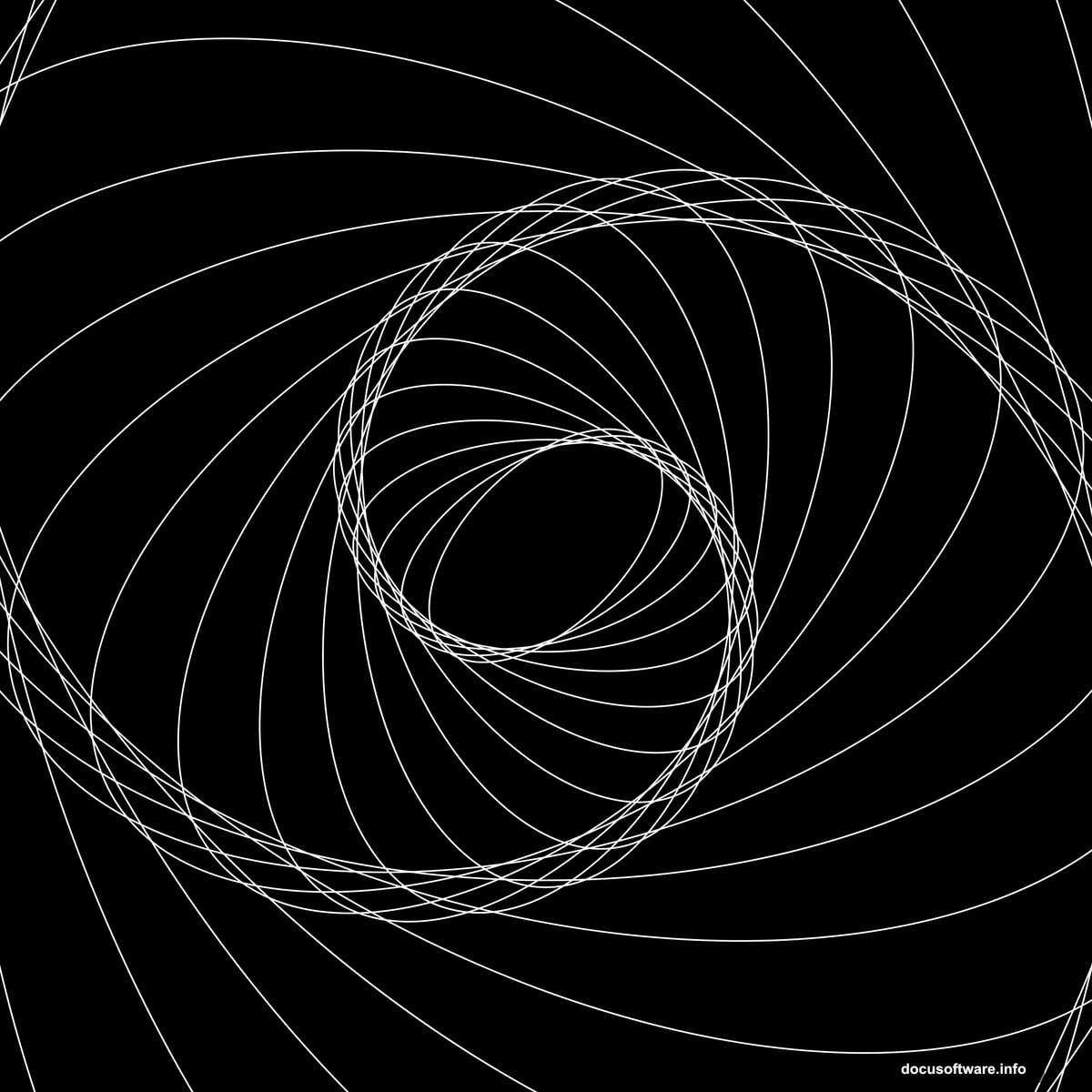
Layer Blend Modes Add Depth
Spirographs become truly captivating when layers interact visually. Don’t stack everything on Normal blend mode.
Experiment with Screen, Overlay, and Color Dodge for luminous effects. Multiply and Darken create rich, layered depth. Difference and Exclusion produce unexpected color interactions.
Try applying different blend modes to individual rotation groups. This creates visual hierarchy and guides the viewer’s eye through your composition.
Color Gradients Transform Simple Patterns
Solid color spirographs look clean but predictable. Gradients inject energy and movement into static designs.
Apply gradient overlays to individual shape layers before running transform sequences. As shapes rotate and duplicate, gradients create flowing color transitions throughout the entire pattern.

Rainbow gradients produce psychedelic effects. Subtle tone shifts feel more sophisticated. Match gradient colors to your project’s overall palette for cohesive designs.
Filter Effects Multiply Complexity
Photoshop’s filter library transforms basic spirographs into intricate fractals. Apply filters to finished spirographs for instant complexity.
Filter > Distort > Polar Coordinates wraps linear patterns into circular compositions. Filter > Other > Offset tiles your spirograph seamlessly across larger canvases. Filter > Blur > Radial Blur adds motion and energy.
Stack multiple filters for compound effects. Just remember: filters work best on rasterized layers. Keep unfiltered copies for backup.
Common Mistakes to Avoid
New spirograph creators hit the same obstacles repeatedly. Learn from these mistakes before they derail your projects.
First, forgetting to deselect vector paths causes shapes to disappear when you press Enter. Always click away from your shape before applying transforms.
Second, using too many rotations creates muddy, illegible patterns. Sometimes fewer iterations produce cleaner, more striking results.
Third, ignoring layer organization makes editing impossible later. Name your layers and group related elements as you work.
Real-World Applications
Spirographs aren’t just abstract experiments. Professional designers use these techniques across multiple disciplines.
Album covers gain visual interest from spirograph backgrounds. Concert posters leverage fractal patterns for psychedelic aesthetics. Logo designers build brand marks from geometric spirograph forms.
Social media graphics pop with spirograph elements. Web designers create unique hero images and background textures. Even print designers incorporate fractals into magazine layouts and packaging designs.
The technique works because spirographs feel both mathematical and organic. They attract attention without overwhelming other design elements.
Take It Further
These fundamentals unlock endless creative possibilities. Once you master basic spirographs, push the technique further.
Combine multiple spirograph layers with different centers and rotations. Mix organic brush strokes with geometric patterns. Integrate photos into fractal compositions using layer masks.
The real power comes from experimentation. Set aside time to play without specific project goals. Your most interesting discoveries happen during unstructured exploration.
Spirographs reward curiosity and patience. So grab Photoshop and start spinning shapes. You’ll surprise yourself with what emerges from simple circles and clever transforms.