
Square pixels are boring. Everyone uses them. But triangles? That’s where things get interesting.
This quick Photoshop trick transforms ordinary mosaic effects into geometric art. Plus, it takes just 10 minutes once you know the technique. No complex selections or filters required.
The secret lies in skewing your image before applying the mosaic filter. Then skewing it back. Simple geometry creates stunning results.
Why Triangle Pixelation Works Better
Standard mosaic filters create predictable square grids. They work fine for basic privacy blurring. But they lack visual interest.
Triangles add dynamic energy to your designs. The diagonal lines create movement. Plus, they feel modern and geometric in a way that squares never will.
Moreover, this technique gives you complete control over triangle size. Adjust the mosaic cell size and you change the entire mood of your effect.

Prepare Your Image First
Open any photo in Photoshop. But here’s the critical step most people skip: resize your image to final output dimensions now.
Why does this matter? The mosaic filter calculates cell sizes based on current image dimensions. So resizing after you apply the effect ruins the triangle proportions.
Save yourself frustration. Get the size right first. Then proceed with confidence.
Create the Triangle Grid
Duplicate your background layer twice. You’ll need three total layers for this technique.
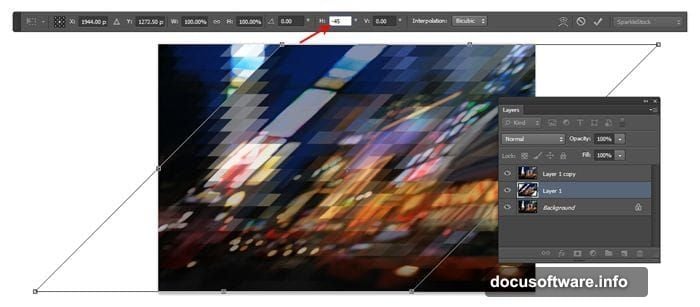
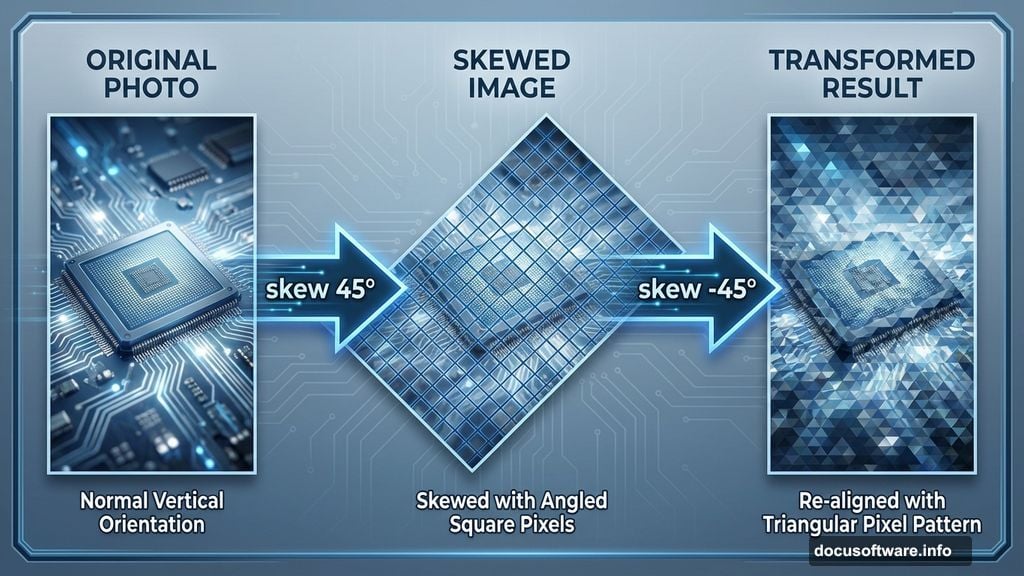
Now comes the transformation magic. Select your top layer and activate Free Transform (Ctrl/Cmd+T). Look for the horizontal skew value in the options bar. Set it to exactly 45 degrees.
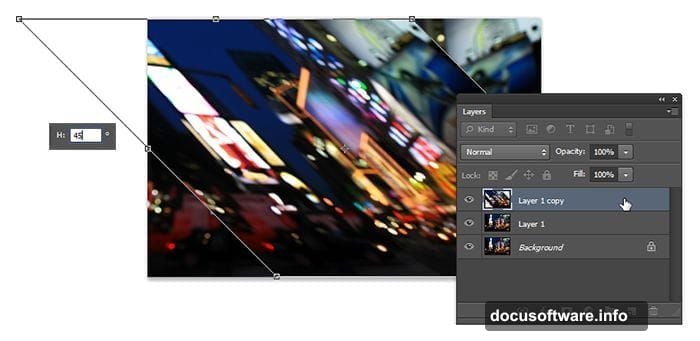
Press Enter to lock in that transformation. Your image now leans dramatically to one side.
Apply the Mosaic Filter
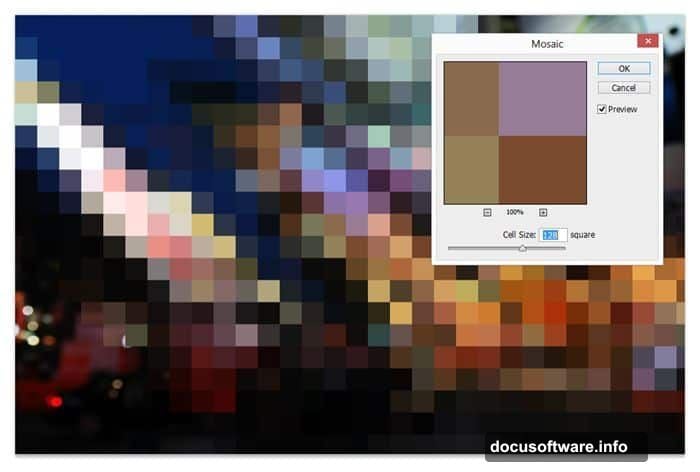
Head to Filter > Pixelate > Mosaic. Here’s where you control your final triangle size.
Start with a cell size around 20-30 pixels. You can always undo and adjust. Larger cells create bold, chunky triangles. Smaller cells produce delicate patterns.
Click OK once you’ve found your preferred size. The skewed image now shows square pixels at an angle.
Transform Back to Triangles
Activate Free Transform again (Ctrl/Cmd+T). This time, set horizontal skew to negative 45 degrees. That’s –45º in the options bar.
Press Enter. Magic happens. Those angled squares transform into perfect triangles. But we’re only halfway done.
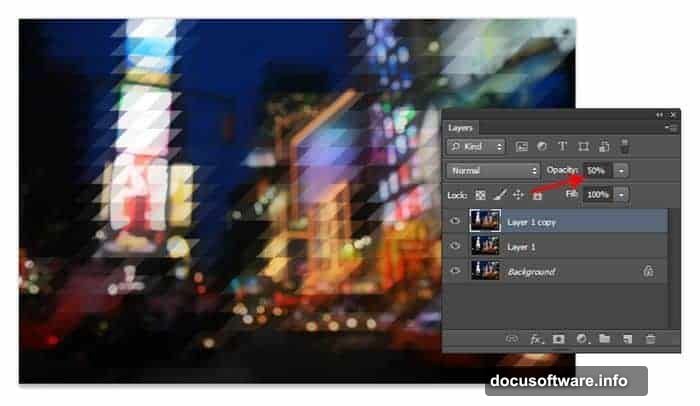
Drop this layer’s opacity to 50%. This allows the second layer to show through and complete the pattern.
Build the Interlocking Pattern
Select your middle layer. We’re repeating the same process with opposite transformations.
Use Free Transform (Ctrl/Cmd+T) to skew this layer to –45º. Yes, negative this time. We’re going the opposite direction.
Apply the mosaic filter again. Quick shortcut: just press Ctrl/Cmd+F. Photoshop remembers your last filter settings and applies them instantly.
Transform back the other way. Set horizontal skew to positive 45º. Your triangles now interlock with the first layer.
Fine-Tune the Alignment
Zoom in to check your work. You’ll probably notice the triangle edges don’t perfectly align at the intersections.
Easy fix. Keep your middle layer selected. Then tap the arrow keys on your keyboard to nudge the layer left or right. Watch the intersections. Stop when the triangles lock together cleanly.
This micro-adjustment makes the difference between amateur and professional results. Take your time here.
Enhance the Final Effect
The triangle pixelation looks great on its own. But you can push it further with additional treatments.
Try applying a subtle vintage film effect. The Instagram Video Photoshop actions include presets that complement geometric designs beautifully. The Vesper effect works particularly well.
Add text using bold geometric fonts. Abolition creates nice contrast against the triangular patterns. Keep your typography simple so the effect stays the hero.
Common Triangle Pixelation Mistakes
Don’t resize your image after applying the effect. This destroys the triangle proportions and creates inconsistent patterns.
Avoid skipping the opacity adjustment. Both layers at 100% opacity create muddy overlaps instead of clean interlocking triangles.
Never use different mosaic cell sizes on the two layers. Consistency matters for proper geometric alignment.
Plus, remember that keyboard nudging step. Skipping it leaves visible gaps that ruin the illusion.
When to Use This Technique
Triangle pixelation works brilliantly for backgrounds. It adds visual interest without overwhelming your foreground content.
Album covers and poster designs benefit from the geometric energy. The effect creates instant modern aesthetic appeal.
Privacy blurring with style. Instead of boring rectangular blocks, use triangles to obscure sensitive information while maintaining design integrity.
Social media graphics stand out when you apply selective triangle pixelation. Blur backgrounds while keeping subjects sharp for maximum impact.
Beyond Basic Triangles
Once you master this technique, experiment with variations. Try different skew angles for wider or narrower triangles.
Apply the effect to specific image areas using layer masks. Combine sharp and pixelated sections for dramatic contrast.

Use adjustment layers between your triangle layers. Shift colors in one layer to create two-tone geometric patterns.
Stack multiple triangle effects at different scales. Large triangles overlaid with smaller ones create complex geometric depth.
Turn It Into an Action
Repeating these steps manually gets tedious. Smart designers record Photoshop actions for instant application.
Hit the record button in the Actions panel. Run through all the steps once. Stop recording. Now you’ve got one-click triangle pixelation.
Just remember that actions work best when images start at consistent sizes. Otherwise, your mosaic cell settings won’t scale properly across different photos.
The technique itself barely scratches the surface of creative mosaic possibilities. But it proves that simple geometric transformations create compelling visual effects. Skip the complex filters and plugin purchases. Master these basic transformation tools and you’ll discover endless design potential.